Evergreen recurring billing periods FAQs
Related information
 Related topics
Find answers to common questions about evergreen recurring billing periods.
A billing period is the interval of time between the last invoice date and the next invoice date. "Recurring" means that the billing repeats on a regular schedule. "Evergreen" is a contract type that indicates the recurring billing schedule repeats indefinitely until it is either ended or canceled.
Each evergreen contract line has multiple recurring billing periods. The first recurring billing period is period 1, the next is period 2, and so on. To manage recurring billing periods, Intacct creates a new contract line with the same contract line number for each subsequent recurring billing period.
There can only be one "In progress" instance of a contract line at a time. When Intacct creates a new contract line for the next recurring billing period, it sets the contract line for the previous recurring billing period to "Closed". The new contract line for the next recurring billing period is now "In progress".
The "Closed" state of a contract line does not mean that the corresponding recurring billing period was invoiced—it simply indicates the corresponding recurring billing period is not the "In progress" recurring billing period for that contract line. You can continue to invoice and recognize revenue for "Closed" recurring billing periods as applicable.
Each evergreen contract line's recurring billing period is based on the following factors:
- The contract's start date determines the numeric calendar day that each recurring billing period starts.
For example, if the contract start date is March 4, then recurring billing periods will start on the 4th of the applicable month.
- The contract line's billing frequency determines the recurring billing period interval. The options are Monthly, Quarterly, or Annually.
When you add a contract line to an evergreen contract, the contract line start date determines when the first recurring billing period is for that contract line. The contract line start date for period 1 can be any date within the "In progress" recurring billing period. Intacct sets the contract line start date for subsequent periods to the applicable recurring billing period start date.
The contract line end date indicates the end of the recurring billing period in which the contract line start date falls. You cannot change the contract line end date.
The following are some examples of how Intacct determines recurring billing periods. By default, Intacct schedules the billing for each recurring billing period on the contract line start date.
| Contract start date | Contract line start date | Contract line Billing frequency | Period 1 start date | Period 1 end date | Period 1 scheduled billing date | Period 2 start date | Period 2 end date | Period 2 scheduled billing date |
|---|---|---|---|---|---|---|---|---|
| March 01 | March 01 | Monthly | March 01 | March 31 | March 01 | April 01 | April 30 | April 01 |
| March 01 | April 08 | Monthly | April 01 | April 30 | April 08 | May 01 | May 31 | May 01 |
| March 15 | March 15 | Monthly | March 15 | April 14 | March 15 | April 15 | May 14 | April 15 |
| April 01 | April 01 | Quarterly | April 01 | June 30 | April 01 | July 01 | September 30 | July 01 |
| April 01 | July 03 | Quarterly | July 01 | September 30 | July 03 | October 01 | December 31 | October 01 |
| April 18 | April 18 | Quarterly | April 18 | July 17 | April l 18 | July 18 | October 17 | July 18 |
| January 01, 2023 | January 01, 2023 | Annually | January 01, 2023 | December 31, 2023 | January 01, 2023 | January 01, 2024 | December 31, 2024 | January 01, 2024 |
| January 01, 2023 | July 07, 2023 | Annually | July 01, 2023 | June 30, 2024 | July 07, 2023 | July 01, 2024 | June 30, 2025 | July 01, 2024 |
| January 16, 2023 | February 13, 2023 | Annually | January 16, 2023 | January 15, 2024 | February 13, 2023 | January 16, 2024 | January 15, 2025 | January 16, 2024 |
The start date for the next recurring billing period is the previous recurring billing period end date + 1. However, the date on which Intacct creates the contract line for the next recurring billing period is defined by the evergreen template selected on the contract. Specifically, the evergreen template instructs Intacct to create the contract line for the next recurring billing period a certain number of days before or after the previous recurring billing period end date.
For example, say the contract line's Billing frequency is monthly, the contract Start date is <Month> 01, and today is May 26. The following table shows examples of when Intacct creates the contract line for the next recurring billing period:
| Number of days before the recurring billing period renewal date defined on the evergreen template | Date the contract line for the next recurring billing period will be created and the contract line for the previous recurring billing period will be closed | "In progress" recurring billing period on May 26 |
|---|---|---|
| 0 | June 01 | May 01 - 31 |
| 1 | May 31 | May 01 - 31 |
| 7 | May 25 | June 01 - 30 |
You can see the Trigger date on the Auto-renewal tab of an evergreen contract line.
When you open an evergreen contract, the Contract lines grid only displays the "In progress" contract lines associated with the contract. You can view the recurring billing period history in the Evergreen history tab:
- When accessed from the contract, the Evergreen history tab displays all recurring billing periods for each contract line in the contract.
- When accessed from the contract line, this tab displays the recurring billing period history for just the selected contract line.
The following is an example of the Evergreen history tab on a contract line:
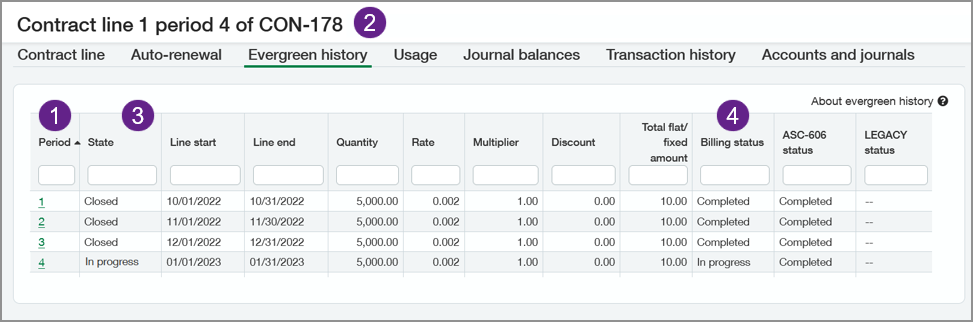
- The Period column displays the recurring billing period number associated with each contract line. You can select the period number to open the contract line for that recurring billing period.
- The contract line popup window displays the contract line number and the selected recurring billing period number.
- The State is the contract line State as it relates to the corresponding recurring billing period.
- The Billing status is the billing schedule status. If there's a Flat/fixed amount on the contract line, each recurring billing period for the contract line has its own billing schedule. A "Closed" contract line for a recurring billing period can have an "In progress" billing schedule if an invoice for that recurring billing period has not been generated.
If the evergreen contract line contains a Flat/fixed amount, Intacct automatically schedules the Flat/fixed amount to be billed on the Line start date for each recurring billing period. If you want to change the scheduled billing date for the Flat/fixed amount, you can edit the "In progress" billing schedule to use a date within the "In progress" recurring billing period.
This does not mean you can only invoice the Flat/fixed amount or usage charges during one recurring billing period date range. Typically, you can generate the invoices for evergreen contract lines as of a particular date and set the invoice date as applicable. If the dates of the contract line charges are on or before the As of date, the charges will be available to invoice.
This is true in all scenarios except when Contracts is configured to associate usage dated before the current recurring billing period start date with the "In progress" billing period, usage is uploaded after the recurring billing period in which it would fall has been closed, and you are invoicing usage as of a date prior to the usage upload date. In this scenario, the usage charges will not be available until the "In progress" recurring billing period start date. See Example 2 in the How does usage work with recurring billing periods? section for more information.
A usage record contains the quantity of a contract line item that a customer used or consumed during a specific time period. Intacct uses the usage records to determine the quantity-based charges on invoices.
Typically, usage is billed in arrears. You invoice charges in the next billing period that are associated with usage that occurred in the previous billing period. The next billing period can also include a flat amount covering services for that billing period.
There are a lot of moving parts with quantity-based evergreen contract lines. Intacct creates a new contract line for each recurring billing period, and usage can be entered into Intacct at any time. Which recurring billing period usage is associated with is all about the timing.
Intacct uses the following factors to determine which contract line recurring billing period to associate with a usage record:
- The usage record date
- The date the usage was entered into Intacct
- The "In progress" recurring billing period start and end date when the usage record was entered
- The usage date Contracts configuration option
Example 1
Say that the recurring billing period is monthly and starts on the first day of each month. Let's use May as an example.
Your usage tracking integration uploads usage to Intacct on the last day of each month. So it uploads usage records dated May 1 - May 31 on May 31.
The contract's evergreen template specifies that the new recurring billing period is created 0 days before the previous recurring billing period end date. On May 31, the "In progress" recurring billing period is May 1 - May 31. In this example, Intacct associates the usage dated May 1 - May 31 with the contract line for the May 1 - 31 recurring billing period.
On June 1, Intacct sets the contract line for the May 1 - May 31 recurring billing period to "Closed" and creates a new "In progress" contract line for June 1 - June 30 with a scheduled billing date of June 1. When you generate the invoice for the contract line as of June 1, the June 1 invoice includes the usage dated May 1 - May 31.
Example 2
Say that the recurring billing period is monthly and starts on the first of each month.
Your usage tracking integration uploads usage for the previous month to Intacct on the 2nd day of the current month.
The contract's evergreen template specifies that the new recurring billing period is created 1 day before the previous recurring billing period end date. Let's look at three recurring billing periods:
- The contract line for the February 1 - 28 recurring billing period is "In progress" from January 31 - February 27. It is "Closed" on February 28.
- The contract line for the March 1 - 31 recurring billing period is "In progress" from February 28 - March 30. It is "Closed" on March 31.
- The contract line for the April 1 - 30 recurring billing period is "In progress" from March 31 - May 30. It is "Closed" on May 31.
The following table shows when different usage records could be invoiced according to whether Contracts is configured with When the usage date is before the current recurring billing period start date, add usage to: the "In progress" recurring billing period or the applicable "Closed" recurring billing period:
| Usage date | Date uploaded to Intacct | If config option = "In progress" recurring billing period | Scheduled billing date | Invoice as of this date after upload date | If config option = applicable "Closed" recurring billing period | Scheduled billing date | Invoice as of this date after upload date |
|---|---|---|---|---|---|---|---|
| February 1 | March 2 | March 1 - 31 | April 1 | March 1 | February 1 - 28 | April 1 | February 1 |
| February 22 | March 2 | March 1 - 31 | April 1 | March 1 | February 1 - 28 | April 1 | February 22 |
| February 28 | March 2 | March 1 - 31 | April 1 | March 1 | February 1 - 28 | April 1 | February 28 |
| March 1 | April 2 | April 1 - 30 | May 1 | April 1 | March 1 - 31 | May 1 | March 1 |
| March 16 | April 2 | April 1 - 30 | May 1 | April 1 | March 1 - 31 | May 1 | March 16 |
| March 29 | April 2 | April 1 - 30 | May 1 | April 1 | March 1 - 31 | May 1 | March 29 |
In this scenario, the configuration option did not impact the scheduled billing date.
However, if a contract line is for usage only with no flat amount, you could technically generate an invoice for the usage charges after the upload date if the usage is associated with the applicable closed period. Using the above example, on March 3 you can generate an invoice for all February usage using an as of date of February 28. You could set the invoice date to any date on or after February 28.
If the Contracts configuration option is set to associate the usage with the "In progress" period, you could generate an invoice for all February usage using an as of date of March 1 and an invoice date on or after March 1.
Example 3
Say that the recurring billing period is monthly and starts on the 15th of each month.
Your usage tracking integration uploads usage to Intacct on the last day of each month.
Contracts is configured with When the usage date is before the current recurring billing period start date, add usage to: "The "In progress" recurring billing period".
The contract's evergreen template specifies that the new recurring billing period is created 7 days before the previous recurring billing period end date. Let's look at three recurring billing periods:
- The contract line for the February 15 - March 14 recurring billing period is "In progress" from February 8 through March 7. It is "Closed" on March 8.
- The contract line for the March 15 - April 14 recurring billing period is "In progress" from March 8 through April 7. It is "Closed" on April 8.
- The contract line for the April 15 - May 14 recurring billing period is "In progress" starting on April 8
The following table shows when different usage records would be invoiced by default given the above criteria:
| Usage date | Date uploaded to Intacct | "In progress" recurring billing period when data is uploaded | Scheduled billing date |
|---|---|---|---|
| February 1 | February 28 | February 15 - March 14 | February 15 |
| February 6 | February 28 | February 15 - March 14 | February 15 |
| February 15 | February 28 | February 15 - March 14 | February 15 |
| February 20 | February 28 | February 15 - March 14 | March 15 |
| February 28 | February 28 | February 15 - March 14 | March 15 |
| March 1 | March 31 | March 15 - April 14 | March 15 |
| March 3 | March 31 | March 15 - April 14 | March 15 |
| March 8 | March 31 | March 15 - April 14 | March 15 |
| March 16 | March 31 | March 15 - April 14 | April 15 |
| March 29 | March 31 | March 15 - April 14 | April 15 |
| April 1 | April 30 | April 15 - May 14 | April 15 |
| April 5 | April 30 | April 15 - May 14 | April 15 |
| April 9 | April 30 | April 15 - May 14 | April 15 |
| April 14 | April 30 | April 15 - May 14 | April 15 |
