Add a variable prompt calendar
Related information
 Related topics
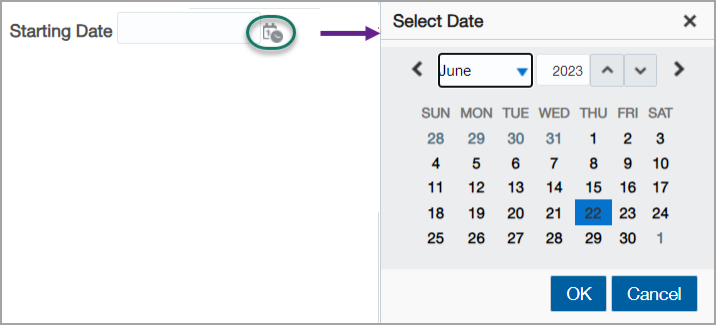
In Interactive Custom Report Writer (ICRW), you typically use a text field to set a variable prompt for a date. Then when the user runs the report, they enter the date in a text field. The ability to select a date from a calendar is not typically available for variable prompts.
There's a workaround for this shortcoming, however. This topic shows you how to include a calendar widget for a variable prompt date.
| Subscription | Interactive Custom Report Writer
Platform Services |
|---|---|
| Regional availability |
All regions |
| User type | Interactive Custom Report Writer: Business, Project Manager |
| Permissions |
Interactive Custom Report Writer: Run, List, View, Add, Edit, Delete Platform Services: Run, List, View, Add, Edit, Delete
|
Add a calendar widget for a variable prompt date
The following task shows you how to add a calendar widget for a variable prompt that requires a date.
- Open an ICRW report to Edit, and go to the Prompts tab.
- Select the New icon and choose Variable Prompt.
- Enter a Name for the Presentation Variable. Then enter a Title and (optionally) a Description.
- Change the User can select from option to a Choice List.
- From the Choice List Values dropdown menu, choose All Column Values, then select the fx icon (to the left of the Select Column button).
- In the calculation field, enter a date string using the following format, including the word
DATEand the two apostrophes:DATE '1999-12-31' - Select OK to close the Edit Column Formula dialog.
- On the New Prompt dialog, expand the Options section, and make sure that the Variable Data Type field is set to Date. Then select OK to save and close the dialog.
- Double-click the new prompt from the list and change Choice List Values to Custom Values. Do not add any custom values to the list.
- Change User can select from to Calendar and once again set the Variable Data Type to Date. Then select OK to save and close the dialog.
Now when a user runs the report, they can select the calendar icon at the prompt and choose a date from a calendar.