Add a custom field in an ICRW report
Related information
 Related topics
This example shows you how to create a custom field and add it to an Interactive Custom Report Writer (ICRW) report. You can make the new field immediately visible in ICRW using the Reload Server Metadata feature.
| Subscription | Interactive Custom Report Writer
Platform Services |
|---|---|
| Regional availability |
All regions |
| User type | Interactive Custom Report Writer: Business, Project Manager |
| Permissions |
Interactive Custom Report Writer: Run, List, View, Add, Edit, Delete Platform Services: Run, List, View, Add, Edit, Delete
|
Advantage of Reload Server Metadata
The Reload Server Metadata feature refreshes the connection between ICRW and its metadata. This is particularly useful when adding a new custom field or user-defined dimension into Intacct. Reload Server Metadata ensures that the new custom field or user-defined dimension is reflected in ICRW immediately.
This topic shows you how to use the Reload Server Metadata option so you can immediately see a new custom field in ICRW and add it to a report.
Add a custom field to an ICRW report
The following examples shows you how to add a custom field called CREDIT_SCORE to the Customer object as a mandatory numeric field.
Step 1. Create a new report
- Go to Reports > Interactive Custom Reports and select Add to start a new ICRW report.
- Choose Create a new report and select the Customer reporting area.
- In the Report name field enter Customer Credit Score, and then select Create report.
If you expand the Customer > Attributes folders you will not find a column named Credit Score. This is the custom field this example adds to the report. - Duplicate this browser tab so you can work in Sage Intacct and keep this report open.
- Continue to create the custom field.
Step 2. Create the custom field
- Go to Platform Services and select Custom fields.
- In the top menu bar, select Add.
- For Choose object to extend, select Customer from the dropdown menu, then select Next.
- For Choose field data type, select Number, then select Next.
- Enter the following parameters for the new field:
- Label: Enter Credit Score with a space between the two words. This is the visible label.
- Length: Enter 3. The Dun and Bradstreet credit score is a number between 0 and 100, so 3 is the maximum length needed.
- Decimal places: 0 (zero). No decimal places are needed.
- Field ID: CREDIT_SCORE is shown for this field. This was derived from the label. There is no need to change the Field ID. You can modify the Field ID here if desired, however.
- Select Next.
- Select the Field is required checkbox and then select Done.
The new custom field appears in the list of fields, as shown in the following example.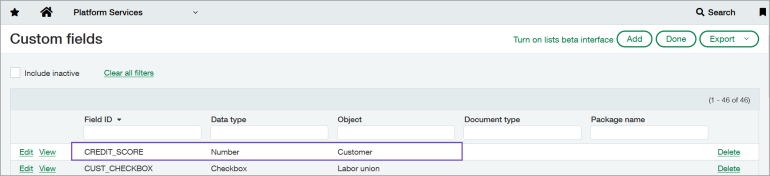
- Continue to populate the custom field.
Step 3. Populate the custom field
Now you can populate the Credit Score for a customer so the value appears in the new field.
- Go to Accounts Receivable and select Customers.
- Select a customer in the list.
- Go to the Customer tab (if you are not already there) and select Edit.
- In the Credit Score field, enter a number between 0 and 100 for the credit score.
This example gave the BTI customer a credit score of 93.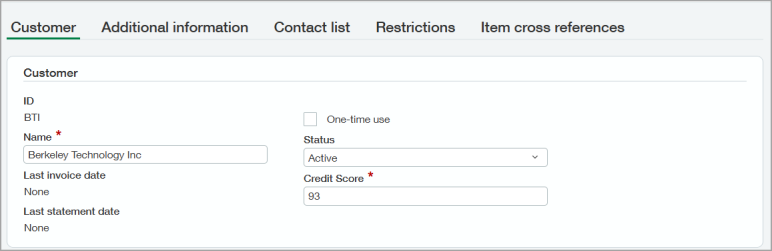
- In the upper toolbar, select Save.
- Continue to refresh the view of available columns.
Step 4. Refresh the view of available columns
The new Credit Score column is not yet visible in ICRW. Now you can refresh your ICRW session and see the new column reflected in the report.
- Go to your ICRW Customer Credit Score report.
- Expand the folders in the Reporting areas panel.
- On the Reporting areas heading, select the Refresh icon (two semi-circle arrows), and choose Reload Server Metadata from the dropdown menu.
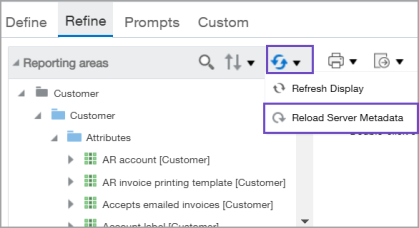
When the reload is complete, the Reporting areas folders collapse to the default view. - Expand the Customer > Attributes folders, and find the Credit Score column.
- Add the Customer Name and Credit Score columns to the report,
- Find the customer whose credit score you added or updated and verify the change.
In the following example, Berkeley Technology Inc shows a Credit Score of 93.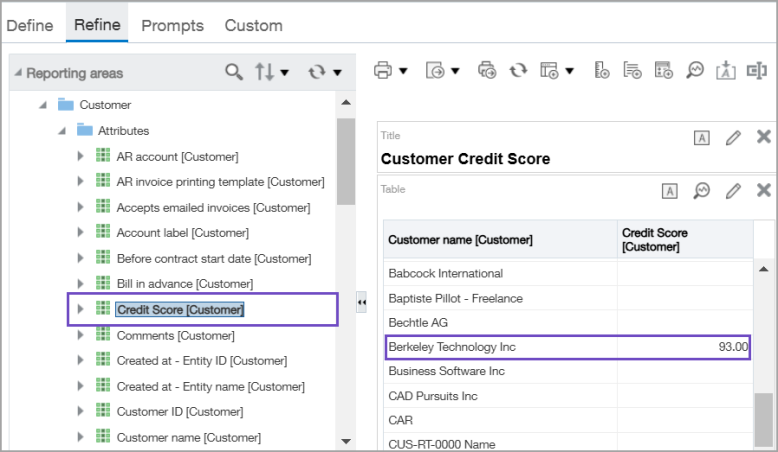
- Save the report.
