Create an ICRW report with multiple reporting areas
Related information
 Related topics
Interactive Custom Report Writer (ICRW) enables you to view multiple reporting areas in a single report. This type of report is optimized for data analysis. This topic outlines the necessary requirements to perform this procedure. Then, provides walk through instructions that simplify customizing SQL to join multiple reporting areas.
| Subscription | Interactive Custom Report Writer
Platform Services |
|---|---|
| Regional availability |
All regions |
| User type | Interactive Custom Report Writer: Business, Project Manager |
| Permissions |
Interactive Custom Report Writer: Run, List, View, Add, Edit, Delete Platform Services: Run, List, View, Add, Edit, Delete
|
Before you begin
To complete this task successfully you must have knowledge in several areas, and plan the columns for the joined reporting areas.
What you need to know
You need to have a solid understanding in the following areas:
- Data structures upon which your report will be based.
- Custom report design for ICRW and other custom reports
- SQL for tables, functions, and calculations
If you need help in any of these areas, reach out to the subject matter expert in your organization. Or, your designated support user can call Support or log a case.
Planning your report
Decide on the columns that you want to include from reach reporting area and the mathematical operation to be applied to the columns. The reporting areas must have the same number of columns and be of the same data type.
In the following example, the joined reporting areas have three columns each with the Sum operation applied:
- LocName column: text data type.
- AP_ Amount column: numerical data type
- AR_Amount column: numerical data type
Uses for this type of report
The ability to view multiple reporting areas in a single report is useful for data analysis across a variety of businesses. For example, a large retail organization might want to compare Accounts Payable and Accounts Receivable totals for their different stores. Or, a nonprofit organization might want to compare monthly donations with projected annual expenses.
The following example is based on a construction use case. The construction company wants to compare the money it owes (AP Bills) with the money it expects to receive (AR Invoices). The report provides this data for the projects in each geographic location.
View multiple reporting areas in a single report
The following task shows you how to create a report with multiple reporting areas. You create this report by customizing the SQL in the Custom tab.
The following two step example walks you through creating a report with multiple reporting areas for a large construction company.
Step 1: Selecting multiple reporting areas for a report
- Open ICRW and Add a new report, choosing a planned Reporting area.
- Enter a descriptive Report name, leave the Properties and Report options blank, and select Create report.
The example uses AP Bills as the first reporting area in the report. - In the Reporting areas pane, expand the folders and double-click objects to add them as columns for the reporting area.
The AP Bills reporting example uses Dimensions > Location > Name and Measures > Transaction amount (AP bill detail).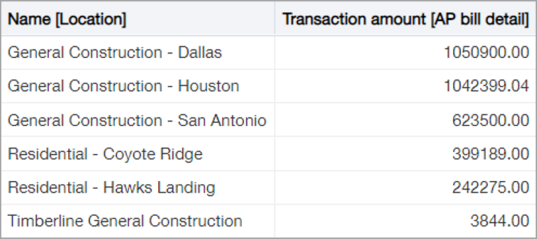
- Open the Define tab and select the Combine columns icon (
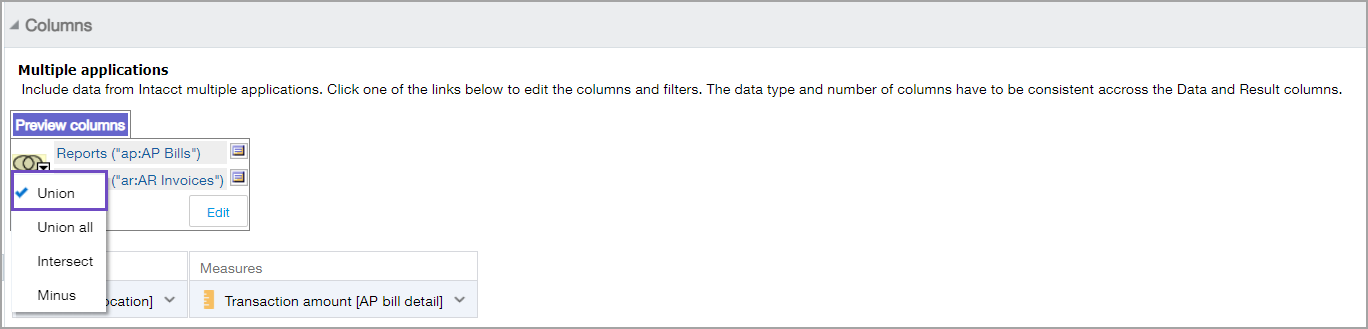
 ) at the far right. Then in the Select Reporting area dialog, select another reporting area to include in the report. This example uses AR Invoices as the second reporting area.
 - From the Preview columns dropdown menu, choose an operation: Union, Union All, Intersect, or minus. This example uses Union (default).
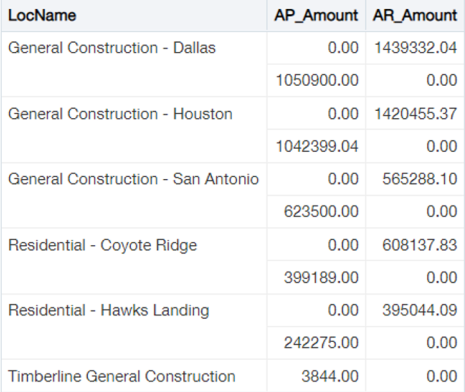
This example returned the following results for the combined reporting areas.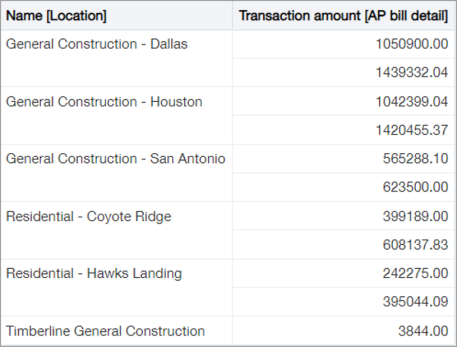
This task is complete. You can continue with Displaying joined reporting areas in a single report.
Step 2: Displaying joined reporting areas in a report
The following task shows you how to modify the SQL generated in the previous task to join the reporting areas. You perform this task from the Custom tab.
The following example creates a single report that shows the reporting area results by location and in separate columns.
-
Open the Custom tab, scroll to the SQL Issued pane, and copy the SQL into an ASCII text editor, such as Notepad or Notepad. Using Microsoft Word can introduce hidden errors. The following example shows that the ICRW generated SQL.
CopySELECT
saw_0,
saw_1
FROM ((SELECT
"Location"."NAME" saw_0,
"AP bill detail Measures"."TRX_AMOUNT" saw_1
FROM "ap:AP Bills"
) UNION (SELECT
"Location"."NAME" saw_0,
"Invoice detail Measures"."TRX_AMOUNT" saw_1
FROM "ar:AR Invoices"
)) t1 ORDER BY saw_0 -
Modify the SQL with easy to understand names, and show AP Bills and AR Invoices data in separate columns by adding zero place holders.
This example changed saw_0 to LocName and saw_1 to AP_AMOUNT and added AR_AMOUNT (use a comma between each item in the list). A Sum(0) placeholder was also added for each column and the ORDER BY saw_0 statement was removed.
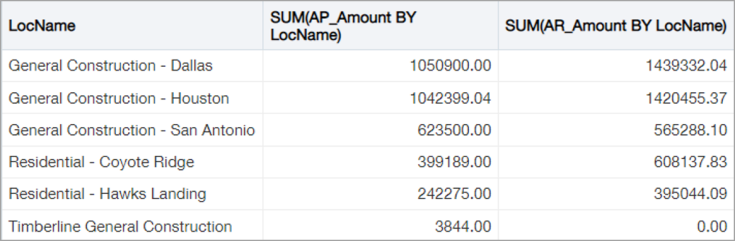
ICRW generated SQL uses the heading provided by the first SQL statement as the table heading. You can change the column heading names later, in step 4. The UNION statement in the following example takes the results from both SQL commands and combines them.CopySELECT LocName, AP_Amount, AR_Amount
FROM
(
(SELECT
"Location"."NAME" LocName,
"AP bill detail Measures"."TRX_AMOUNT" AP_Amount
Sum(0) AR_Amount
FROM "ap:AP Bills")
UNION
(SELECT
"Location"."NAME" LocName,
Sum(0) AP_Amount,
"Invoice detail Measures"."TRX_AMOUNT" AR_Amount
FROM "ar:AR Invoices")
) t1 -
To add the values of the rows for each Location, include a Sum operation for each numeric column. Then, add a second table name at the end, as shown in the following example. Be sure that your formatting includes the necessary parenthesis.
CopySELECT LocName,
Sum(AP_Amount by LocName) AP_Amount,
Sum(AR_Amount by LocName) AR_AMOUNT
FROM
(
SELECT LocName, AP_Amount, AR_Amount
FROM
(
(SELECT
"Location"."NAME" LocName,
"AP bill detail Measures"."TRX_AMOUNT" AP_Amount,
Sum(0) AR_Amount
FROM "ap:AP Bills")
UNION
(SELECT
"Location"."NAME",
Sum(0),
"Invoice detail Measures"."TRX_AMOUNT"
FROM "ar:AR Invoices")
) t1
) t2 -
Assign the final column names by adding an SQL set at the beginning of the statement with the column names that you want to appear in the report. Then, add a third table name at the end, as shown in the following example. Be sure that your formatting includes the necessary parenthesis.
CopySELECT LocName, AP_Amount, AR_Amount
FROM
(
select LocName,
Sum(AP_Amount by LocName) AP_Amount,
Sum(AR_Amount by LocName) AR_Amount
From
(
SELECT LocName, AP_Amount, AR_Amount FROM
(
(SELECT
"Location"."NAME" LocName,
"AP bill detail Measures"."TRX_AMOUNT" AP_Amount,
Sum(0) AR_Amount
FROM "ap:AP Bills")
UNION
(SELECT
"Location"."NAME",
Sum(0),
"Invoice detail Measures"."TRX_AMOUNT"
FROM "ar:AR Invoices")
) t1
) t2
) t3 -
Delete the SQL in the SQL Issued pane of the Custom tab and replace it with the custom SQL from an ASCII text editor. Using Microsoft Word can introduce errors.
-
Select New report.
The following example shows the final results.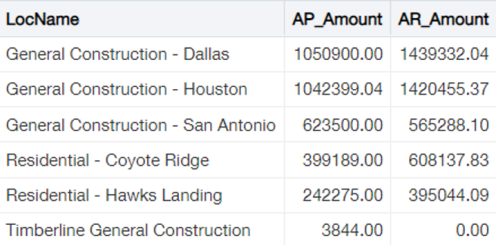
Difference between joining reporting areas and combining columns
There are important differences between joining reporting areas using the SQL statement in the Custom tab and combining columns in the Define tab.
Join combines the data into new columns to form a new report. If data from two reporting areas are joined together, then the data from the first reporting area is displayed in columns alongside the second reporting area's columns in the same row.
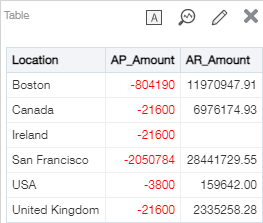
Combine (using the union operation) combines the data into new rows. If data from two reporting areas are combined, then data from the first reporting area is in one set of rows, and the data from the second reporting area is in another set of rows. The rows are displayed in the same report.