
Order Entry classic sales transactions field mapping
Related information
 Related topics
Data between Intacct and Salesforce is synchronized by mapping fields from one application to the other. Use the standard field mappings provided, or create custom mappings between Intacct and Salesforce.
To view standard and custom field-mappings, go to the Advanced CRM Integration configuration page in Intacct. On the configuration page, use the link in the Field Mapping section of the object that you want to configure.
Salesforce Opportunities are used to generate Intacct sales quotes, orders, and invoices. Order Entry uses different price lists and entries than those used in the Intacct Contracts application.
Intacct Order Entry transactions are synchronized with Intacct-provided custom objects in Salesforce.
Sales transactions overview
The custom objects in Salesforce are read-only and mirror the original Intacct document. These records can be created in Salesforce using the Create <Transaction> buttons included in the Advanced CRM Integration packages. The transaction line item details for these records can also be synchronized to Salesforce.
This synchronization allows you to set which Order Entry transaction definitions can be entered from Salesforce, and which transactions Intacct writes back to Salesforce. For example, you can allow Salesforce users to post Sales Quotes and Sales Orders from Salesforce, but not allow them to enter Sales Invoices. You could then set Sales Invoices to post from Intacct to Salesforce to close the loop.
Pause synchronization
Before configuring synchronization options, Sage Intacct recommends disabling all synchronization with Salesforce while you make synchronization changes.
To turn off all synchronization:
- Log in to Intacct as an administrator.
Go to Company > Admin > Subscriptions > Advanced CRM Integration and select Configure.
Go to Company > Admin > Subscriptions > Sage People Integration and select Configure.
- On the Settings tab, deselect the Enable Intacct Salesforce synchronization checkbox and Save.
When you’re done making sync changes, return to the Intacct subscription page and re-enable synchronization.
Classic sales transaction synchronization table
Synchronize records from Salesforce as read-only information in Intacct using the sales transaction table:
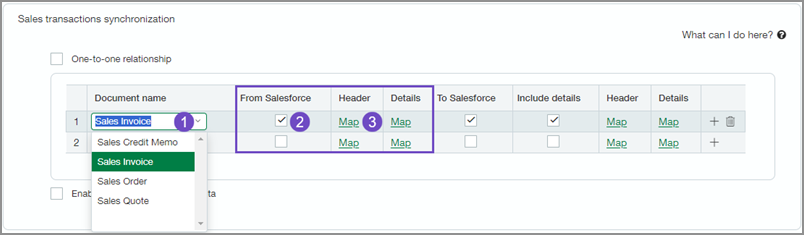
The Document name field allows you to select the Order Entry document type.
Check From Salesforce to have order data come from Salesforce.
Use the Headers and Details Map links to map the OE document header and line item information to the Opportunity Header and Opportunity Product details.
You can also synchronize records to Salesforce from Intacct as read-only information:
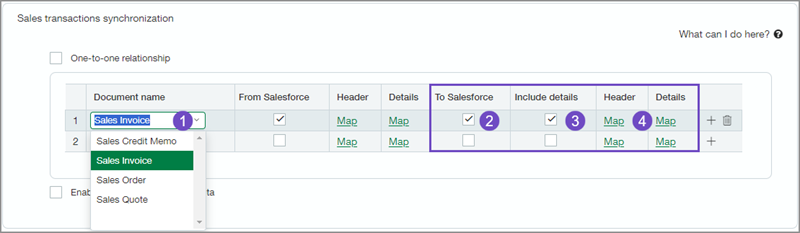
The Document name field allows you to select the Order Entry document type.
Check To Salesforce to have Intacct data based on the document type sync to Salesforce.
Check Include details to have Intacct line item details also synced to Salesforce.
Use the Map links for Headers and Details to map the sales invoice line item details to the custom IntacctSales invoices object in Salesforce.
To set sales transaction settings:
- Log in to Intacct as an administrator.
Go to Company > Admin > Subscriptions > Advanced CRM Integration and select Configure.
- In the Sales transaction synchronization section of Order Entry Integration, use the Sales transaction synchronization table to set sync options and Save your changes.
Classic sales transactions synchronization settings
The Advanced CRM Integration provides standard field mappings and custom objects for sales transaction synchronizations.
Standard field mappings
The following table lists the standard field mappings for sales transaction synchronizations.
From Salesforce: Header standard field mappings
You can change the status of the following field mappings. For more information, see Change Status.
| Intacct | Salesforce | Sync Rule | Status |
|---|---|---|---|
| Customer ID (CUSTVENDID) | Account ID (AccountId) | To Intacct | Active |
| Txn currency (CURRENCY) | Opportunity Currency (CurrencyIsoCode) | To Intacct | Default: Active |
| Document number (DOCNO) | Intacct Transaction ID (ia_crm__Intacct_Transaction_ID__c) | To Intacct | Default: Active |
| Bill-to contact name (SODOCUMENT.BILLTO.CONTACTNAME) | Bill to (ia_crm__Bill_to__c) | To Intacct | Default: Active |
| Ship-to contact name (SODOCUMENT.SHIPTO.CONTACTNAME) | Ship to (ia_crm__Ship_to__c) | To Intacct | Default: Active |
| Reference number (PONUMBER) | Name (Name) | To Intacct | Default: Active |
| Message (MESSAGE) | Description (Description) | To Intacct | Default: Active |
| Term Payment terms (SODOCUMENT.TERM.NAME) | Term (ia_crm__Term__c) | To Intacct | Default: Active |
From Salesforce: Details standard field mappings
You can change the status of the following field mappings. For more information, see Change Status.
| Intacct | Salesforce | Sync Rule | Status |
|---|---|---|---|
| Item ID (ITEMID) | Product ID (Product2Id) | To Intacct | Active |
| Quantity (UIQTY) | Quantity (Quantity) | To Intacct | Active |
| Memo (MEMO) | Line Description (Description) | To Intacct | Default: Active |
| Item description (ITEMDESC) | Name | To Intacct | Default: Active |
| Suggested price (RETAILPRICE) | ListPrice | To Intacct | Default: Active |
| Price (UIPRICE) | Sales Price (UnitPrice) | To Intacct | Default: Active |
| Start date (REVRECSTARTDATE) | Date (ServiceDate) | To Intacct | Default: Active |
| End date (REVRECENDDATE) | Service End Date (ia_crm__Service_End_Date__c) | To Intacct | Default: Active |
| Employee (EMPLOYEEID) | Employee (ia_crm__Employee__c) | To Intacct | Default: Active |
| Department (DEPARTMENT) | Department (ia_crm__Department__c) | To Intacct | Default: Active |
| Ship to (SHIPTO.CONTACTNAME) | Ship to Contact (ia_crm__Ship_to_Contact__c) | To Intacct | Default: Active |
| Location (LOCATION) | Intacct Location (ia_crm__Intacct_Location__c) | To Intacct | Default: Active |
To Salesforce: Header standard field mappings
| Intacct | Salesforce | Sync Rule | Status |
|---|---|---|---|
| Customer ID (CUSTVENDID) | Customer (ia_crm__Account__c) | From Intacct | Active |
| Date (WHENCREATED) | Date (ia_crm__Date__c) | From Intacct | Active |
| Type (DOCPARID) | Document Type (ia_crm__Document_Type__c) | From Intacct | Active |
| Document number (DOCNO) | Sales Invoice No (Name) | From Intacct | Active |
| Document number (DOCNO) | Document Number (ia_crm__Document_Number__c) | From Intacct | Active |
| Message (MESSAGE) | Message (ia_crm__Message__c) | From Intacct | Active |
| Reference number (PONUMBER) | Reference Number (ia_crm__Reference_Number__c) | From Intacct | Active |
| Date due (WHENDUE) | Ship Date (ia_crm__Ship_Date__c) | From Intacct | Active |
| Subtotal (SUBTOTAL) | Subtotal (ia_crm__Subtotal__c) | From Intacct | Active |
| Total (TOTAL) | Total (ia_crm__Total__c) | From Intacct | Active |
| Payment terms (SODOCUMENT.TERM.NAME) | Terms (ia_crm__Terms__c) | From Intacct | Active |
| State (STATE) | State (ia_crm__State__c) | From Intacct | Active |
| Ship-to contact: Company name (SODOCUMENT.SHIPTO.COMPANYNAME) | Ship to Company Name (ia_crm__Ship_to_Company_Name__c) | From Intacct | Active |
| Ship-to contact: Print as (SODOCUMENT.SHIPTO.PRINTAS) | Ship to Name (ia_crm__Ship_to_Name__c) | From Intacct | Active |
| Ship-to contact address: Line 1 (SODOCUMENT.SHIPTO.MAILADDRESS.ADDRESS1) | Ship to Address 1 (ia_crm__Ship_to_Address_1__c) | From Intacct | Active |
| Ship-to contact address: Line 2 (SODOCUMENT.SHIPTO.MAILADDRESS.ADDRESS2) | Ship to Address 2 (ia_crm__Ship_to_Address_2__c) | From Intacct | Active |
| Ship-to contact address: City (SODOCUMENT.SHIPTO.MAILADDRESS.CITY) | Ship to City (ia_crm__Ship_to_City__c) | From Intacct | Active |
| Ship-to contact address: State or territory (SODOCUMENT.SHIPTO.MAILADDRESS.STATE) | Ship to State (ia_crm__Ship_to_State__c) | From Intacct | Active |
| Ship-to contact address: ZIP or postal code (SODOCUMENT.SHIPTO.MAILADDRESS.ZIP) | Ship to ZIP or postal code (ia_crm__Ship_to_Zip_Code__c) | From Intacct | Active |
| Ship-to contact address: Country (SODOCUMENT.SHIPTO.MAILADDRESS.COUNTRY) | Ship to Country (ia_crm__Ship_to_Country__c) | From Intacct | Active |
| Bill-to contact: Company name (SODOCUMENT.BILLTO.COMPANYNAME) | Bill to Company Name (ia_crm__Bill_to_Company_Name__c) | From Intacct | Active |
| Bill-to contact: Print as (SODOCUMENT.BILLTO.PRINTAS) | Bill to Name (ia_crm__Bill_to_Name__c) | From Intacct | Active |
| Bill-to contact address: Line 1 (SODOCUMENT.BILLTO.MAILADDRESS.ADDRESS1) | Bill to Address 1 (ia_crm__Bill_to_Address_1__c) | From Intacct | Active |
| Bill-to contact address: Line 2 (SODOCUMENT.BILLTO.MAILADDRESS.ADDRESS2) | Bill to Address 2 (ia_crm__Bill_to_Address_2__c) | From Intacct | Active |
| Bill-to contact address: City (SODOCUMENT.BILLTO.MAILADDRESS.CITY) | Bill to City (ia_crm__Bill_to_City__c) | From Intacct | Active |
| Bill-to contact address: State or territory (SODOCUMENT.BILLTO.MAILADDRESS.STATE) | Bill to State (ia_crm__Bill_to_State__c) | From Intacct | Active |
| Bill-to contact address: ZIP or postal code (SODOCUMENT.BILLTO.MAILADDRESS.ZIP) | Bill to ZIP or postal code (ia_crm__Bill_to_Zip_Code__c) | From Intacct | Active |
| Bill-to contact address: country (SODOCUMENT.BILLTO.MAILADDRESS.COUNTRY) | Bill to Country (ia_crm__Bill_to_Country__c) | From Intacct | Active |
To Salesforce: Detail standard field mappings
| Intacct | Salesforce | Sync Rule | Status |
|---|---|---|---|
| Line number (LINE_NO) | Line No (Name) | From Intacct | Active |
| Department ID (DEPARTMENTID) | Department (ia_crm__Department__c) | From Intacct | Active |
| Location ID (LOCATIONID) | Location (ia_crm__Location__c) | From Intacct | Active |
| Item ID (ITEMID) | Item (ia_crm__Item__c) | From Intacct | Active |
| Item description (ITEMDESC) | Description (ia_crm__Description__c) | From Intacct | Active |
| Memo (MEMO) | Memo (ia_crm__Memo__c) | From Intacct | Active |
| Price (UIPRICE) | Price (ia_crm__Price__c) | From Intacct | Active |
| Quantity (UIQTY) | Quantity (ia_crm__Quantity__c) | From Intacct | Active |
| Warehouse ID (WAREHOUSE.LOCATION_NO) | Site (ia_crm__Site__c) | From Intacct | Active |
| Unit (UNIT) | Unit (ia_crm__Unit__c) | From Intacct | Active |
| Ship-to (SHIPTO.CONTACTNAME) | Ship-to Contact (ia_crm__Ship_To__c) | From Intacct | Active |
Change Status
If the Status of a standard field mapping can be changed, a dropdown menu becomes available for use when you select the field line.
Use this menu to deactivate fields you do not need to sync between Intacct and Salesforce. The default setting is Active.
Active (default)
When Active, information for a field is synced between Intacct and Salesforce, depending on the sync direction.
Inactive
When Inactive, information for a field is not synced between Intacct and Salesforce.
Reset field mapping defaults
If you need to reset field mappings to the default settings, go to More actions > Reset default field mapping. You will be prompted to confirm that you want to reset all your field mappings for a specific area, such as Accounts. After you confirm, all field mappings for the selected area will be restored to their default settings.
Custom objects
These custom objects can be added to Salesforce page layouts, using the custom field for each object provided in the package. The custom objects provided by Intacct in the Advanced CRM Integration package are:
| Intacct Order Entry Objects | Salesforce Custom Objects |
|---|---|
Sales Quotes | Sales Quotes |
Sales Credit Memo | Others Sales Document |
Sales Orders | Sales Orders |
Sales Invoices | Sales Invoices |
Order Entry Revenue Recognition template | Rev rec Template |
Order Entry Renewal Template | Renewal Template |
Payment settings
The sales transaction sync table lets you choose which transactions are allowed to come from Salesforce, and which ones post back to Salesforce. When you select the Payment details checkbox, Intacct also posts payment detail information to Salesforce. Payment details provide insight into open balances and payment history.
Reset field mapping defaults
If you need to reset field mappings to the default settings, go to More actions > Reset default field mapping. You will be prompted to confirm that you want to reset all your field mappings for a specific area, such as Accounts. After you confirm, all field mappings for the selected area will be restored to their default settings.
In this topic