
Data migration tool
Related information
 Related topics
Transitioning from the original CRM Integration offered by Intacct to the Sage Intacct Advanced CRM Integration can be daunting, especially when it comes to transferring your data. We created the Data migration tool to help streamline this process.
| Subscription | Sage Intacct Advanced CRM Integration |
|---|---|
| Regional availability |
All regions |
| User type |
Business user with admin privileges The Sage Intacct admin can authorize other users after the integration has been configured. |
| Configuration |
Requires:
Additional subscriptions are required if you want to use the following with your Advanced CRM Integration:
|
The Data migration tool allows you to selectively migrate Intacct records to Salesforce. The tool helps you to:
-
compare Intacct records with Salesforce records, and then migrate your data without manually comparing records, ensuring your Salesforce data is up-to-date and reflects your Intacct information.
-
avoid mistakes by reviewing matches before updating Salesforce.
-
migrate large volumes of data quickly with batch processing.
The tool searches for information about the select object in Intacct and then looks for matching information in Salesforce. It uses the Intacct ID or Name to find matching records.
Select records
-
Log in to Salesforce as an administrator and go to the Intacct mass synchronization tab.
-
Select the Data Migration tab.
-
In the Object configuration section, Select an object from the dropdown.
Three Salesforce objects are available for use:-
Account
-
Contact
-
Project
-
-
Select how many Items per page you want to review.
-
Select an entity to filter your Intacct data further.
-
(Optional) Select the Exclude reviewed records checkbox to hide records that have already been previously reviewed.
-
In the Intacct filter sections, narrow down the Intacct records further, as needed.
-
Based on the object type you selected, you can Filter your search to fields in that object. For example, you could filter for the CUSTOMERID on Account fields.
-
Select an Operator and Value for the selected field filter.
-
Add another filter, as needed.
-
Select Search to apply filters to the record table at the bottom of the page. Records matching your filter criteria are displayed.
-
-
Review the table of Intacct records and their potential matches in Salesforce.
Review matches
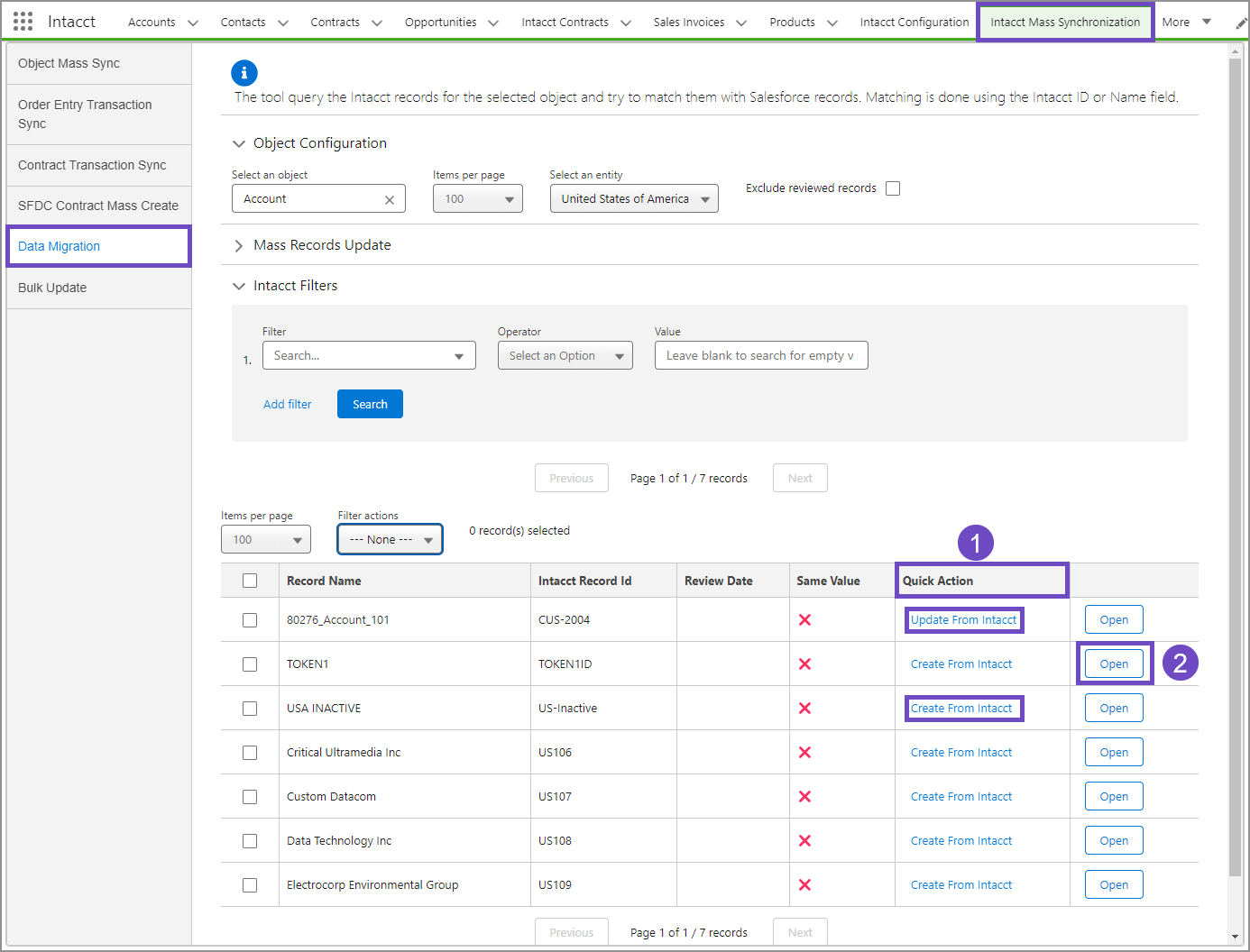
The table displays the Intacct records and their possible matches in Salesforce.
-
The Quick Actions column allows you to create a new Salesforce record or update an existing one directly from the table.
-
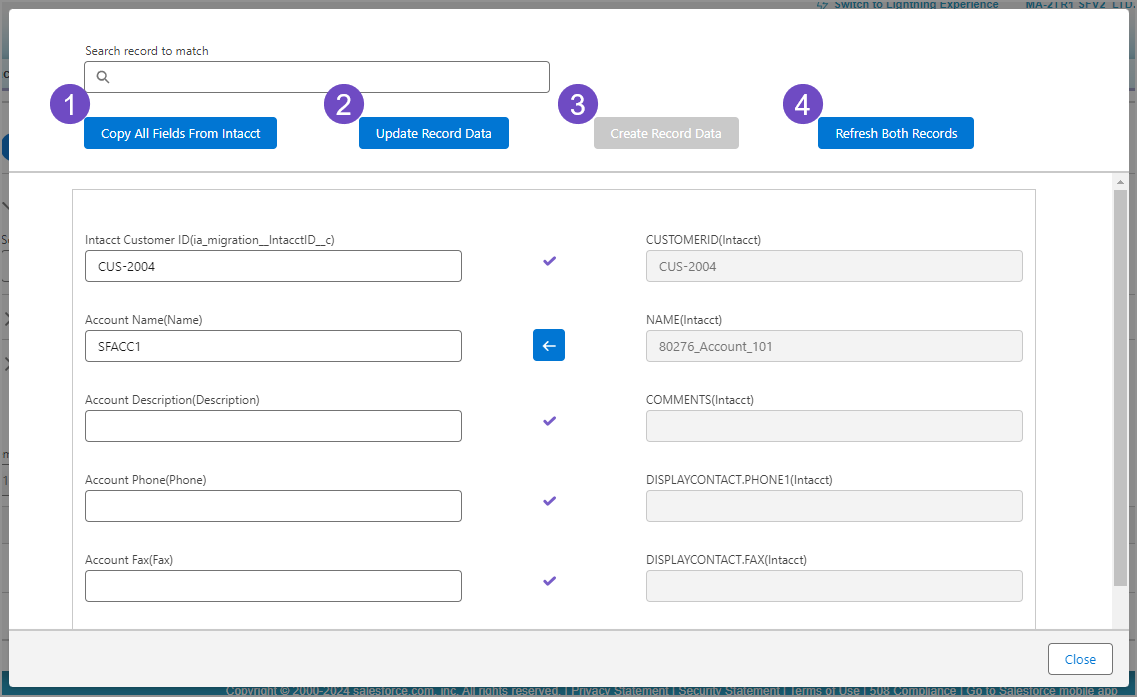
Select Open next to any record to view a detailed comparison of the Intacct and Salesforce data.
On record comparison popup, you can:
-
Copy all fields from Intacct to Salesforce.
-
Update specific fields in Salesforce.
-
Create a new Salesforce record based on the Intacct data.
-
Refresh the data to see the latest values.
How matches are made
When you choose your search criteria, the tool first tries to find matching information by using the Intacct ID. It looks at all the records related to your selected object in Salesforce to find records with the Intacct ID. There could be more than one match.
If the tool cannot find a match using the Intacct ID, it then tries to find matches based on the Name field. It looks at all the Salesforce records that do not have an Intacct ID and searches for records with the same Name. Again, there could be multiple matches.
Batch processing
You can process multiple records at once by selecting specific lines in the record table.
-
Select all records, or specific records, in the table.
-
In the Mass Records Update section, choose a Batch size.
-
Select a Batch type:
-
Create: Only for records with no matches in Saleforce.
-
Update: For records with partial, multiple, or perfect matches.
-
Both: Performs both Create and Update actions,
-
-
Select Process Selected Records to update or create records in bulk batches.
You will get an email notification when the batch processing is complete. You can refresh the table to see the current status of the record processing.
Record table fields
The table at the bottom of the page displays Intacct records and their potential matches in Salesforce.
| Column | Description |
|---|---|
|
Items per page |
Select how many records per page to view. |
|
Filter actions |
Refine your results by the following:
|
|
Record name |
The Intacct record name. The record name is one of the ways the tool finds matches between Intacct and Salesforce. |
|
Intacct record ID |
The Intacct record ID. |
|
Review date |
The date on which a record has been previously reviewed. No date listed means the record has not been reviewed. |
|
Same value |
Match strength indicators:
|
|
Quick action |
Select a link in this column to either create a new Salesforce record or update an existing record.
|
|
Record comparison |
Select Open to see a side-by-side comparison of the fields in Intacct next to the corresponding fields in Salesforce. |
 A checkmark indicates that the field values in
  A check mark with a warning sign indicates some field values in
  A red X indicates none of the field values in
In this topic