Welcome to Interactive Custom Report Writer
Related information
 Related topics
Interactive Custom Report Writer (ICRW) enables you to build powerful reports across a wide range of reporting areas. Consumers of ICRW reports can access interactive detail analysis of report data in real-time.
Why use ICRW?
- Easily add more columns.
- Display a report with the columns swapped around in any order.
- Display a report in multiple formats (tables, pivot tables), and have multiple tables and pivot tables as needed.
- Easily switch between different views of the data from a simple dropdown list within the report with the View Selector feature.
- Include and exclude columns from each view independent from any other view.
- Create custom calculation columns.
- Set up one or more 'click to drill to the source' columns in a report.
Types of ICRW users
Interactive Custom Report Writer brings advanced business intelligence (BI) capabilities to transactional analysis within Sage Intacct.
Builders
Interactive Custom Report Writer (ICRW) report designers must be comfortable working with advanced reporting systems and object level data structures. Building reports with ICRW provides a reporting canvas with drag and drop capabilities. You can further refine your data using transactional analysis tools such as grouping, pivot style formatting, advanced trending, and time-line analysis. The ability to view results as you build a report can ensure accurate report data and provide insights into new methods of analysis.
Viewers
ICRW reports deliver robust capabilities for viewer data analysis that allow transactional data to be easily explored and interpreted. You can filter and pivot the information to explore details further and still maintain the overall picture. You can export the reports to PDF or Excel and distribute the insights to your data beyond Sage Intacct.
ICRW innovation
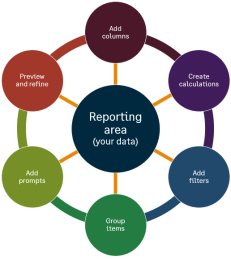
Interactive Custom Report Writer provides an innovative approach to building reports:
- Drag-and-drop capabilities throughout the user interface
- Expanded use of icons for ease of use and faster report creation
- Enhanced features for refining reports and fine tuning results
- Calculation columns with complex math functions, case and if statements, rolling sums, and trend analysis
You can link ICRW reports together and eliminate the need for spreadsheets. You have the flexibility to add content in a logical order and change and update the content as needed.
ICRW basics
Interactive Custom Report Writer (ICRW) is available by subscription. You can access Interactive Custom Reports from the Reports center or the Reports menu.
You can create an ICRW report based on an existing report (best practice), or create a new ICRW report.
| Subscription | Interactive Custom Report Writer
Platform Services |
|---|---|
| Regional availability |
All regions |
| User type | Interactive Custom Report Writer: Business, Project Manager |
| Permissions |
Interactive Custom Report Writer: Run, List, View, Add, Edit, Delete Platform Services: Run, List, View, Add, Edit, Delete
|
Working with the ICRW canvas
The following screenshot highlights the areas of the Interactive Custom Report Writer canvas.
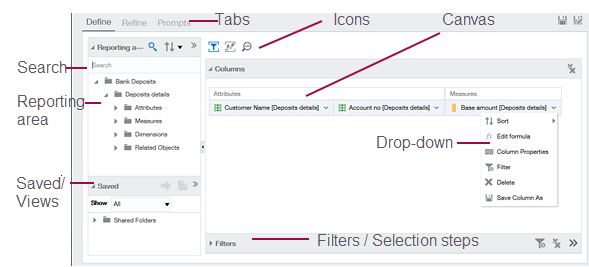
When you create an ICRW report, you select a reporting area that correlates with data objects. Each reporting area provides different data for your report. Select a reporting area to determine if it provides the data you need for your report. Additionally, you can refer to the Object glossary for custom reports
After you select Create Report, the Reporting area with its folders and subfolders appears. The data is grouped into categories based on the most common reporting selections. Searching reporting areas makes it easy to find what you’re looking for. Drag and drop the folders into the report canvas to add the data to your report.
ICRW tabs
- Define tab: Gather the data to be included at report time. Provides drag and drop capabilities that allow you to add and edit the location of your columns. You can also change a column into a new section of the report, or into a prompt.
- Refine tab: Format the output of the gathered data. Allows you to see the results of a report with the data appearing in real time. You can also drag new columns onto the report to see the results instantly.
- Prompts tab: Add run-time filters so that consumers of the report can narrow the output. Enables you to further refine your report with run time filters that hide data before it is included in a report. You can also add prompts that require your consumers to select specific data when they run the report.
- Custom tab: Examine and create custom SQL statements in a report and join two or more reporting areas using SQL. Provides advanced users with the ability to examine SQL statements, create new reports using custom SQL. You can also modify custom SQL reports using Apply XML.
Icons and menus
The Interactive Custom Report Writer relies heavily on icons and contextual right-click menus. Each tab has a different purpose, and the contextual menus change to suit the purpose of each tab.
For example, the Define tab displays icons to show and hide the Filters section. The Refine tab provides icons to create calculation columns and groups. Both tabs give you access to the Selection Steps section.
Using the ICRW Report Library
You can use pre-built interactive custom reports as the basis for a new report. Basing a new report on a pre-built report from the Report Library is a recommended best practice.
For more information, see Create a new report from the Library.
ICRW task map
The following table lists where you can find things and perform certain tasks in Interactive Custom Report Writer (ICRW).
| Task/option | Interactive Report Writer |
|---|---|
| Create a new report |
Go to Reports > All > Advanced and select Add (circle) next to Interactive Custom Reports. |
| Select the data to use |
Select a Reporting area from the starting page. |
|
Add columns to a report |
On the Define tab, expand the reporting area and subfolder options. Drag selections from the left pane onto the canvas (or double-click the name). You can also use the Search option to find what you are looking for. |
|
Add calculated columns and items |
On the Refine tab, select |
|
Remove columns |
On the Define tab, select |
|
Change the column order |
On the Refine tab, drag and drop to the desired location anytime. Moving columns on the Define tab doesn’t move their displayed location in a report. You control the final output display on the Refine tab. |
|
Add column totals |
Right-click a column and select Grand total on a column. |
|
Sort column information |
|
|
Pre-defined data filters |
On the Define tab, in the Filters section, select  . . |
|
Group data |
select  to add additional groupings or create a Bin. to add additional groupings or create a Bin. |
|
Set the title and date of a report |
On the Refine tab, select  for title and subtitle. for title and subtitle. |
|
Run-time filters |
select the Prompts tab and add prompt filters for use at runtime. |
|
Table prompt (within the report) |
On the Refine tab, select then add a table prompt in the Layout section. |
|
Format |
Format icons at multiple levels (title, table). |
|
Run a report |
Select Run from the reports list. |
|
Save a report and add it to a menu |
Select  Save, then from the Reports list select Add to menu. Save, then from the Reports list select Add to menu. |
|
Delete a report |
|
|
View the report as a pivot table |
Go to Views and select Pivot table. |
|
Open a sample custom report |
Reports appear in the Reports Library. |
|
Online help |
Select Help & Support. |
 to open the Calculated Measure editor. Optionally, you can select
  to create a calculation for a single item.
 on the column to remove, and select Delete from the dropdown list.
 ICRW and sensitive data types
Access to protected health information used in Interactive Custom Report Writer is not currently tracked by Advanced Audit Trail.
Interactive Custom Report Writer operates outside of the purview of Advanced Audit Trail. Therefore, companies that require HIPAA compliance should not use PHI as data sources for Interactive Custom Report Writer.
For more information, see Advanced Audit Trail and HIPAA compliance.
Reference information
Advanced users can benefit from the following:
Object glossary: Provides information on fields that exist in the Sage Intacct data base that might not appear in a selected reporting area.
Example calculations: Provides sample calculations that you can copy for use in ICRW reports. These sample calculations can also be used as references for proper syntax in calculations and SQL statements.
Example functions: Provides information on common functions and how to use them, including guidelines for proper syntax. You can use functions in addition to other calculation items, such as filters and operands.
Regional availability
Interactive Custom Report Writer (ICRW) is generally available in:
All regions
