Sandbox refreshes—Sage People Integration
Sage People and the Sage People Integration is based on Salesforce. Salesforce allows you to create copies of your production organizations, called sandboxes.
It's common to test integrations by creating a link between an Intacct sandbox and a Salesforce sandbox. After you’ve tested that the integration works, you can then integrate production environments.
Salesforce sandbox refreshes provide a way to update and test your Advanced CRM Integration before moving any new configurations into your production environments.
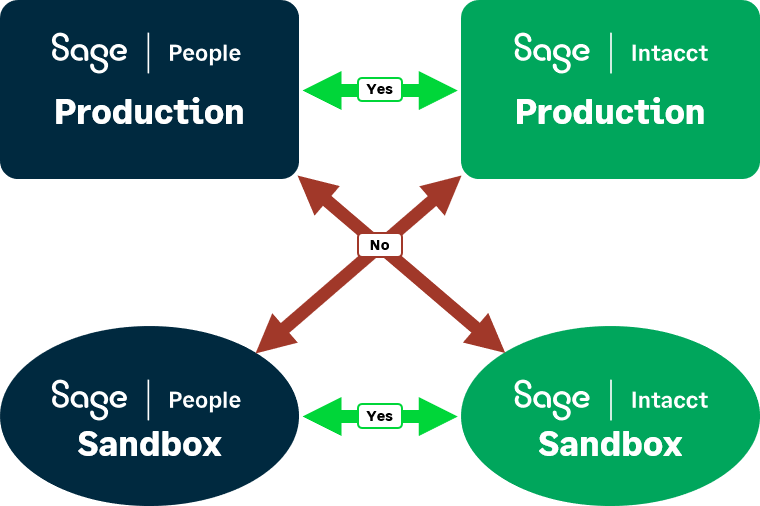
Sandbox refresh process
The Sage People Integration supports Salesforce sandbox refreshes. A sandbox refresh requires a re-initialization of your data.
Refresh your Salesforce sandbox
Refreshing a Salesforce sandbox updates the metadata for the sandbox from its source org.
For more information about refreshing your Salesforce sandbox, go to https://help.salesforce.com/articleView?id=data_sandbox_refresh.htm.
Clear your subscription data
After your Salesforce sandbox has been refreshed, go to the Intacct configuration page in Salesforce and select the Clear Subscription Data button.
Intacct transactions, such as Intacct OE sales invoices and Intacct Contracts information are deleted from your Salesforce sandbox. Other information, such as Accounts Receivable terms or Locations, remain in the sandbox. The Advanced CRM Integration will match existing records in both systems when you reinitialize your data.
See Clear subscription data—Sage People Integration for more information.
Cancel and resubscribe to the Sage People Integration
You must cancel your subscription and then resubscribe to the Sage People Integration in Intacct to reinitialize your data.
To cancel your subscription to the Sage People Integration:
- Log in to Intacct as an administrator.
-
- Select Done.
Your subscription has been canceled.
To resubscribe to the Advanced CRM Integration:
- Log in to Intacct as an administrator.
-
- The Sage People Integration configuration page opens.
Reconfigure Sage People Integration options
Now you must now reconfigure your selections for the Sage People Integration sync options.
For more information, review the topics in Configure Sage Intacct—Sage People Integration.
