Add grand totals to the top and bottom of pivot tables—ICRW
Related information
 Related topics
Columns in a report organize and make sense of the data. You can add formulas and functions to Interactive Custom Report Writer (ICRW) report columns to enhance data analysis. For large reports, it can be helpful to show grand totals both at the top and bottom of a report, which you can do with a pivot table.
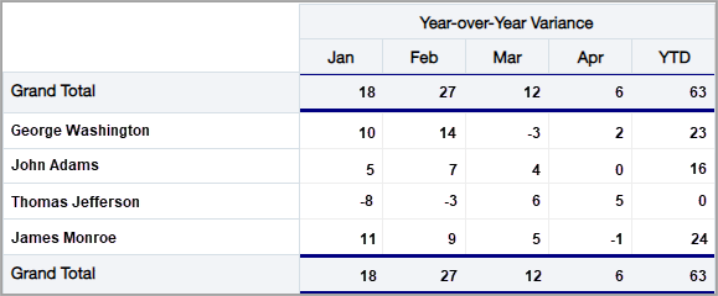
This topic demonstrates how to add a grand total at the top and bottom of a pivot table.
| Subscription | Interactive Custom Report Writer
Platform Services |
|---|---|
| Regional availability |
All regions |
| User type | Interactive Custom Report Writer: Business, Project Manager |
| Permissions |
Interactive Custom Report Writer: Run, List, View, Add, Edit, Delete Platform Services: Run, List, View, Add, Edit, Delete
|
Open a pivot table view of a report
You can view any ICRW report as a table or pivot table. Changes to the report are shown immediately regardless of the view. These views allow you to explore the data in more detail by linking to more information.
You can choose to view a report as a table or a pivot table.
- Open an ICRW report and go to the Refine tab.
- Go to the Views pane in the lower left corner of the window.
- Select
 (Views) and choose the desired view.
Create grand totals at the top and bottom of a pivot table
This section shows you how to add a grand total at the top and bottom of a pivot table view of a report.
Add a Grand Total at the top of the report
- Open the pivot table view, then from the Refine tab, go to Rows in the Layout section.
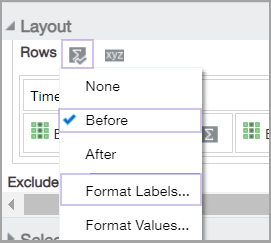
- Select the Sigma icon (Sum/Totals), and choose Before from the dropdown menu.
- While still on the Sigma icon dropdown menu, select Format Labels.
- In the Edit Format dialog, enter a Caption, choose a Border Position, then select a Border Style and Border Color.
- Select OK.
The following example uses Grand Total as a Caption, a Custom border Position, Border Style, and Border Color.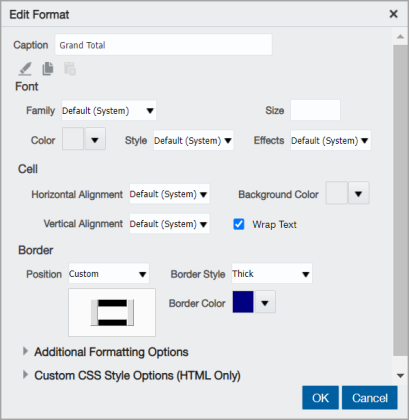
- Continue to Add a Grand Total at the bottom of the report.
Add a Grand Total at the bottom of the report
- Select the Calculation column icon to add a new calculation column.
- Enter a Folder title, Column title, then in the Calculation pane enter:
'Grand Total' - Select OK and move the new column to the far left in the Rows section.
- Select the Sigma icon for the new column and choose After from the dropdown menu.
- While still on the Sigma icon dropdown menu, select Format Labels.
- In the Edit Format dialog, enter a Caption, choose a Border Position, then select a Border Style and Border Color.
- Select the Gear icon for the new column, choose Hidden, then select Done in the upper right corner of the window.
- Select Done in the upper right corner of the window and Save the report.
The following report shows the results for the previous procedures.