Customize total and subtotal formatting—ICRW
Related information
 Related topics
Columns in a report organize and make sense of the data. You can add formulas and functions to Interactive Custom Report Writer (ICRW) report columns to enhance data analysis.
This topic demonstrates how to customize subtotal and grand total row formatting using a specialized Cascading Style Sheet (CSS) template. The custom CSS settings allow you to improve the readability of ICRW reports viewed in a Web browser.
Custom CSS (HMTL only) formatting only appears when the report is viewed in a browser. The custom formatting is not shown in PDF versions of the custom CSS reports.
| Subscription | Interactive Custom Report Writer
Platform Services |
|---|---|
| Regional availability |
All regions |
| User type | Interactive Custom Report Writer: Business, Project Manager |
| Permissions |
Interactive Custom Report Writer: Run, List, View, Add, Edit, Delete Platform Services: Run, List, View, Add, Edit, Delete
|
The custom CSS template allows you to apply specialized formatting to subtotal and grand total rows of ICRW report tables and pivot tables. Microsoft Excel, the industry standard spreadsheet, is the application on which the custom CSS template is based.
Download the custom template
To download a copy of the custom CSS template, select this link: Custom Excel CSS template.
Working with the custom template
Bold text is the main visual differentiation for total and subtotal rows in ICRW reports.
The custom CSS template allows you to enhance the formatting for total and subtotal rows to make reports easier to read. You can select from a variety of options in the custom CSS template. This template allows you to customize the visual presentation on a report-by-report basis.
Custom formatting options
The following example shows a custom subtotal row that uses 10 options from the custom CSS template.
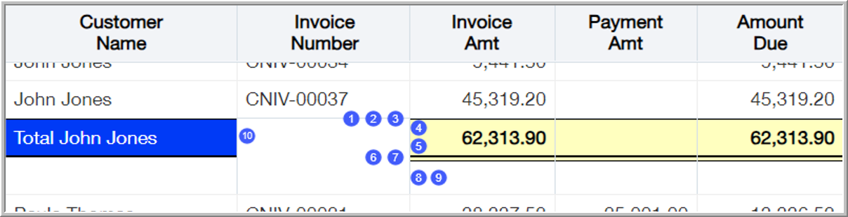
- Line color (all lines)
- Line thickness (all lines)
- Upper line type (Single, Double, None; Single shown in the example)
Standard ICRW formatting does not allow for different upper and lower line types. - Extra vertical space above the values (Yes or No)
Not available in standard ICRW formatting. - Custom background color (Light yellow shown in the example)
- Lower line type (Single, Double, None; Double shown in the example)
Standard ICRW formatting does not allow different upper and lower line types. - Amount of vertical space between double lines
Standard ICRW formatting does not allow this vertical spacing change. - Extra vertical null space below the bottom line (Yes or No)
Standard ICRW formatting does not allow this vertical spacing change. - Custom color for the extra vertical null space below the bottom line
Standard ICRW formatting does not allow this customization. - All customization options are available for values and labels.
Types of formatting: values and labels
You can specify custom formatting for Values and Labels. The two sections of the custom CSS template are identical. The different sections allow you to create a separate set of custom selections for values and labels. The individual sets provide you with easy access to both types of customizations.
CSS Generator precaution
Custom colors
Options for Line Color and Background Color can be found on the Lookups page of the custom template. Go to the top of the page in the Range Name: COLOR_LOOKUP section.
You can add, remove, and create your own list of preferred selectable colors under COLOR LOOKUP. Sample color swatches, names, and hex color codes can be found on other tabs in the template.
Save your favorites
The Favorites section, at the bottom of the custom template, allows you to create a library of preferred customizations. The Favorites library stores the options that you use most often in one place for easy access.
Save a copy of the custom template
It is a recommended best practice to keep a backup copy of the custom template. This practice provides a safeguard for your list of custom Favorites.
Customize the formatting for subtotals and totals
You can customize the formatting for subtotal and total rows in an ICRW report by performing three simple procedures:
Enable subtotals in an ICRW report
This task shows you how to enable subtotals in an ICRW report.
- Open an ICRW report for editing and go to the Refine tab.
- In the Table section, select the Pencil icon (Edit) and go to the Layout pane.
- Select the Sum icon (Sigma symbol) for the column on which you want to create rows of subtotals.
- Do the following to turn on the subtotals for the column:
- For Tables, select After Values.
- For Pivot Tables,select either Before Values or After Values, as desired.
- Leave the report open and continue with format total and subtotal values.

Format total and subtotal values
This task shows you how to apply custom template selections to customize total or subtotal values in an ICRW report.
- Open the custom CSS template and select the Subtotal Formats tab at the bottom of the page.
- In the Subtotal Rows - Format Values section, make the desired selections for Cell Characteristics and Line Characteristics.
- Go to the open ICRW report and select the Sum icon (Sigma symbol) for the column again and choose Format Values.
- In the Edit Format dialog, expand the Custom CSS Style Options (HTML Only) section and select Use Custom CSS.
- On the Subtotal Formats page of the custom Excel template, copy (CtrlC) the CSS in cell A22.
- Go to the Edit Format dialog of the ICRW report. Then paste (CtrlV) the CSS in the Use Custom CSS Style field, then select OK.
- To customize the column labels in the report, continue with format total and subtotal labels. Otherwise, select Done.
Format total and subtotal labels
This task shows you how to apply custom template selections to customize total or subtotal labels in an ICRW report.
- Go to the Subtotal Formats page of the custom CSS template and scroll right to the Subtotal Rows - Format Labels section.
- Make your customized selections for Cell Characteristics and Line Characteristics.
- Go to the open ICRW report and select the Sum icon (igma symbol) for the column again and choose Format Labels.
- In the Edit Format dialog, expand the Custom CSS Style Options (HTML Only) section and select Use Custom CSS.
- On the Subtotal Formats page of the custom Excel template, copy (CtrlC) the CSS in cell I22.
- Go to the Edit Format dialog of the ICRW report. Then paste (CtrlV) the CSS in the Use Custom CSS Style field, then select OK.
- Select Done.
