Pay a vendor with Vendor Payments powered by CSI
Related information
 Related topics
Paying a vendor with Vendor Payments powered by CSI is simple. Select CSI from the Payment provider dropdown on the Pay Bills page and the provider chooses the best payment method. The payment goes through any necessary approvals.
| Subscription |
|
|---|---|
| User type | Business |
| Permissions | Pay Bills: Run |
| Restrictions |
This service is only for US vendors accepting USD. |
-
Go to Accounts Payable > All > Bills > Pay bills.
The Pay Bills page appears.
- Apply a filter to load bills.Create and save a filter for vendors enabled to receive Vendor Payments powered by CSI.
- Select CSI from the Payment provider dropdown list.
- Select Selected by Provider from the Payment method dropdown list.
- Select bills to pay. Apply any credits and enter the Amount to pay.
- Select Pay now.
- If your company is enabled for payment approvals, this sends the payment to the Approve Payments page for approval.
- If your company is not enabled for payment approvals, the payment becomes a payment request that's sent to CSI for processing.
After you select Pay now, you can't cancel the payment until it fails.
Payment timing
Vendors typically receive payments 5-10 business days after you send a payment. For example, if you sent a payment on Monday, the vendor receives a credit to their account by the following Friday. Your own account is debited the day after you send the payment, in this case, on Tuesday.
See the SLA for Vendor Payments powered by CSI for more information.
How the provider selects payment method
The following diagram explains how the payment provider selects the payment method for each vendor. When you first submit payment, you'll see Network for the payment method. This will eventually update to ACH, virtual card, or check depending on how CSI pays the vendor.
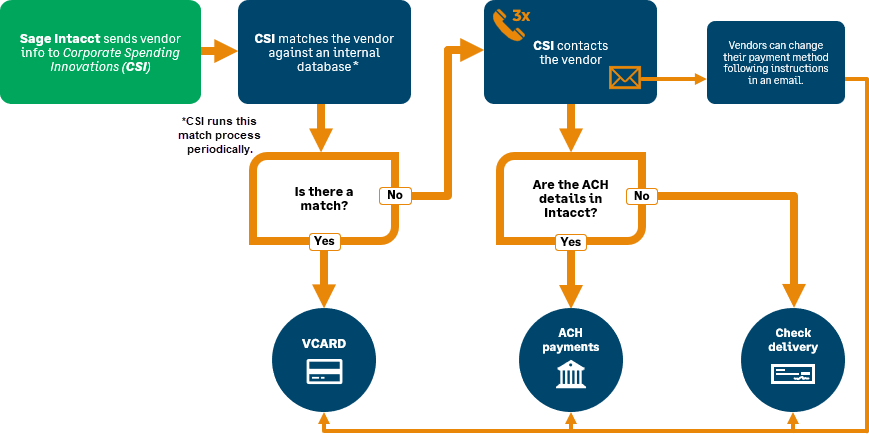
About the provider payment state
You can view the current state of your payment with the provider from the Payment Requests list until processing is complete, at which point it becomes a posted payment.
Refresh payment state
If the Provider payment state column hasn't updated after 24 hours, you can manually refresh the payment state for selected payment requests.
-
Go to Accounts Payable > All > Payments > Payment requests.
-
Select the payments to get the latest state for.
-
Select Refresh state.
The Payment provider state column updates with the latest information from CSI.
Payment provider state
|
Status |
Description |
|---|---|
|
Received |
The payment has been received by the payment provider. |
|
Awaiting Authorization |
The payment is awaiting authorization. |
|
Awaiting Funds |
The payment is awaiting funds from the bank. |
|
Rejected |
The payment has been rejected. |
|
Payment File Available |
The payment file is available. |
|
Processing Error |
There was an error processing the payment. |
|
Processing |
The payment provider is processing the payment. |
|
Processing Complete |
The payment has been processed. |
