Enhanced mapping in the import service
Related information
 Related topics
Accurate field mapping is key to a successful import. While the column headers in your file do not have to be an exact match, you'll need to correlate them to the correct fields in Intacct. The mapping process ensures your data lands in the correct place in Intacct.
This is a continuation of the first step of the import process.
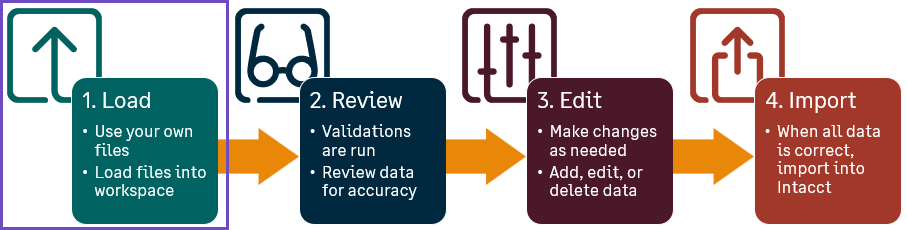
AI-powered enhanced mapping
Enhanced mapping helps you more quickly map the fields in your spreadsheets to the appropriate fields in Intacct. The enhanced mapping tools allow you to split or join fields, map one source field to multiple destinations, and even generate new values (like creating email addresses from names).
Enhanced mapping example
For example, let's suppose that you're importing new Contacts but all you have are first and last names as the contact ID. With this information, you can populate the Contact name, First name, and Last name fields by using the enhanced mapping.
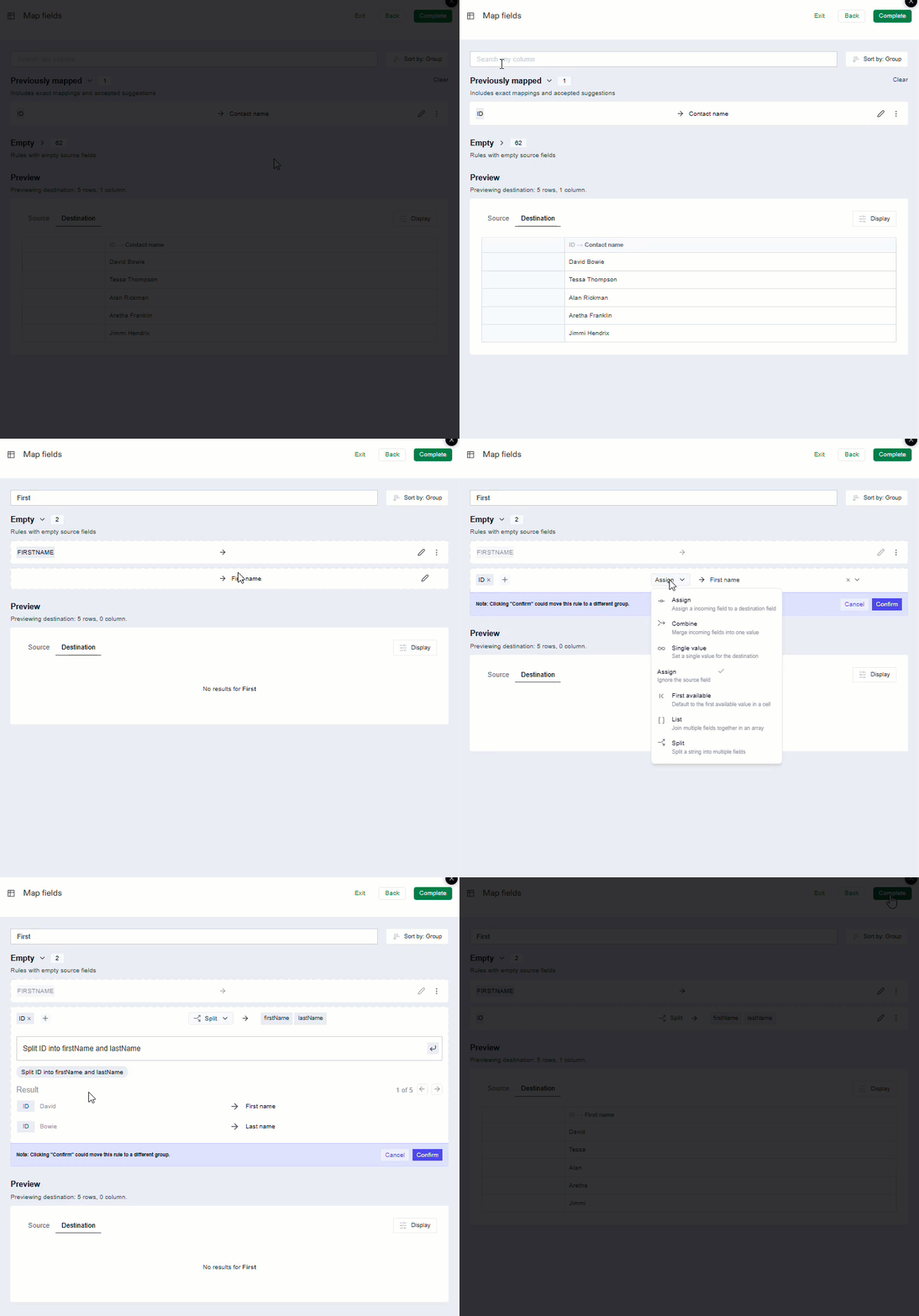
In the image above, these are the steps taken to map Contact fields with enhanced mapping.
-
Go to Company > Setup > Import data > New import service.
-
Open the Company > Contacts > Create area of the import workspace.
-
Load your contact spreadsheet to the import service workspace.
-
On the mapping page, the source field ID is mapped automatically to the destination field Contact Name.
-
Use the search bar to find the destination field First name and select Edit Edit.
Source fields are listed on the left side of the column in all capital letters; destination fields are listed on the right side of the column in sentence case.-
Select Edit and assign ID to the source field.
-
Select Split from the actions menu.
The import agent suggests an action, in this case: Split ID into firstName and lastName.
-
Select Split ID into firstName and lastName.
Review the Results section to verify the split results match your expectations.
-
Select Confirm to map the ID field to the First and Last name fields.
-
-
When you’re finished mapping fields, select Complete.
Your records are loaded into the import service workspace for review.
Enhanced mapping tools
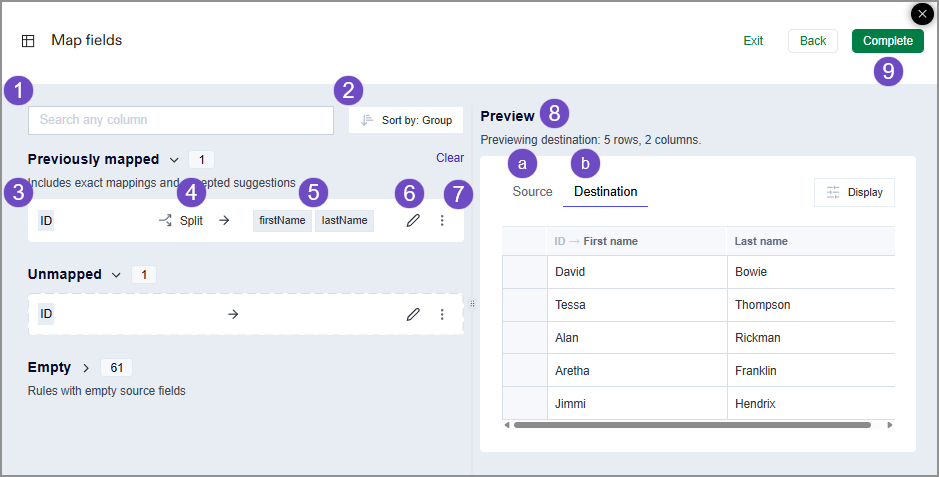
The tools on the enhanced Map fields page help you get your data into the right place in Intacct.
-
Use the search bar on the Map fields page to find source or destination columns. The list updates as you enter terms.
-
You can Sort the source and destination fields by:
-
Group, which groups the source and destination fields into the following. The number next to the heading of each list displays how many source and destination fields are in each group.
-
The import service includes fields you Previously mapped, both from earlier imports and from any suggested mappings you accepted. These fields also contain data in the spreadsheet currently being loaded into the workspace.
-
Unmapped fields that are present in your spreadsheet that do not exactly match the column headers in Intacct. These fields also contain data in the spreadsheet currently being loaded into the workspace.
-
Empty fields, which are available for mapping but contain no data in the spreadsheet currently being loaded into the workspace.
Some fields might be in a collapsed list. When searching, if you do not see the field you're looking for, expand any collapsed lists. -
-
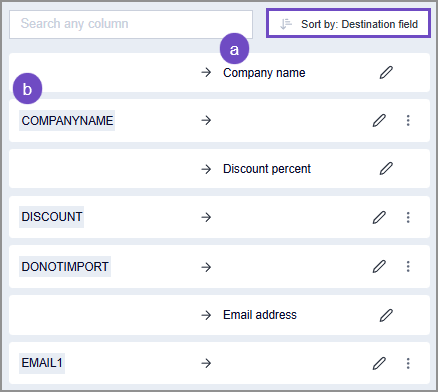
Destination field, which sorts all fields by the destination field first. This displays the list alphabetically, with the destination field (a) followed by the corresponding source field (b).
-
Source field, which sorts the list by source fields first (a), followed by the destination fields (b).
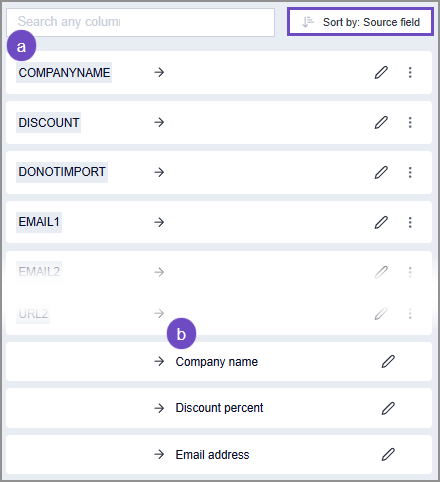
-
-
The Source fields in your mapping. These are the column headers from the spreadsheet that was loaded into the workspace. When you Edit (6) a mapping, you can select more than one source field as needed.
-
The Actions menu. This menu allows you to select how you want the source field to interact with the destination fields. To access this menu, you first select Edit (6).
-
Assign: Assign an incoming field to a destination field.
-
Combine: Merge incoming fields into one value in the destination field. For example, you could select First name and Last name as source fields, and combine them into one name in the Contact name.
-
Single value: Set a single value for the destination field.
-
First available: Default to the first available value in a cell.
-
List: Join multiple fields together in an array.
-
Split: Split a string into multiple fields. For example, you could split the Contact ID into First name and Last name.
-
-
The Destination fields in your mapping. These are the Intacct fields that you’re importing information into. When you Edit (6) a mapping, you can select more than one source field as needed.
-
You can Edit your mappings to assign Source fields to Destination fields.
-
The More options menu allows you to delete a mapping as needed.
-
Preview your mapped fields and review the data in each field.
-
Select the Source tab to see the data from your spreadsheet.
-
Select the Destination field to see how your data has been mapped to fields in Intacct.
-
-
Select Complete when all required fields have been mapped.
How to ignore rows or columns during import
When your file contains information you do not want to import, you have two options:
-
Map the destination fields to a Do not import source field. This tells the import process to ignore the information on import. The Do no import column appears in all Sage Intacct import service templates.
-
Leave the mapping field for the information blank (unmapped). This also tells the import process to ignore the information on import.
Offline imports
The import service automatically handles offline imports. The structure, content, and complexity of your data impacts the import process and the time it takes to complete.
Consider the following when creating your import files:
-
Smaller, simpler imports (fewer columns and rows) are processed faster and typically in real time. For example:
If your file only has 4 columns, you can typically include more records.
-
Larger, more complex imports might require offline processing. For example:
If your file has 30 or more columns, and you have more than 5,000 records, the import will be processed offline.
The estimated maximum file size that you can load into the import service is 4MB. Files larger than 4MB might fail to load into the import service.
The estimated maximum number of records that you can include in a single import is 40,000. However, if your import is less complex (fewer columns), the estimated maximum number of records can be higher.
Offline imports notification
You’ll be notified via email when an offline import completes. The status of the offline import is also available in the Jobs menu: .
.
When an offline import job finishes, you'll receive an email summarizing the results. This email includes:
-
Total number of records: The overall count of records in your import file.
-
Successfully imported records: The number of records processed without errors.
-
Error count: The total number of records with errors.
Learn more about offline imports.
Next steps
After you’ve mapped your fields and values, the import service extracts that information into a sheet in the import workbook and applies Intacct business logic validations to your data. If any errors are encountered, they’re highlighted at the line and field levels on the review sheet.
Go to Review, fix, and validate data in the import service for details on the import service tools for error correction.
