Import service sheet tools
Related information
 Related topics
This visual guide provides quick, animated visuals to show you how to get the most out of the import service. Whether you're managing columns or cleaning up data, these tools will help you work faster and more efficiently.
AI-powered Transform
Use natural language with the AI-powered Transform agent to change or update your data before you import it into Intacct.
Transform streamlines data cleanup during import. Tell it what you need done, such as removing prefixes or splitting field, and it updates the data for you. You’ll get a preview of the changes before they’re applied.
In this example, after loading Contact data, you notice the Print as field is blank. Use Transform to automatically fill it in.
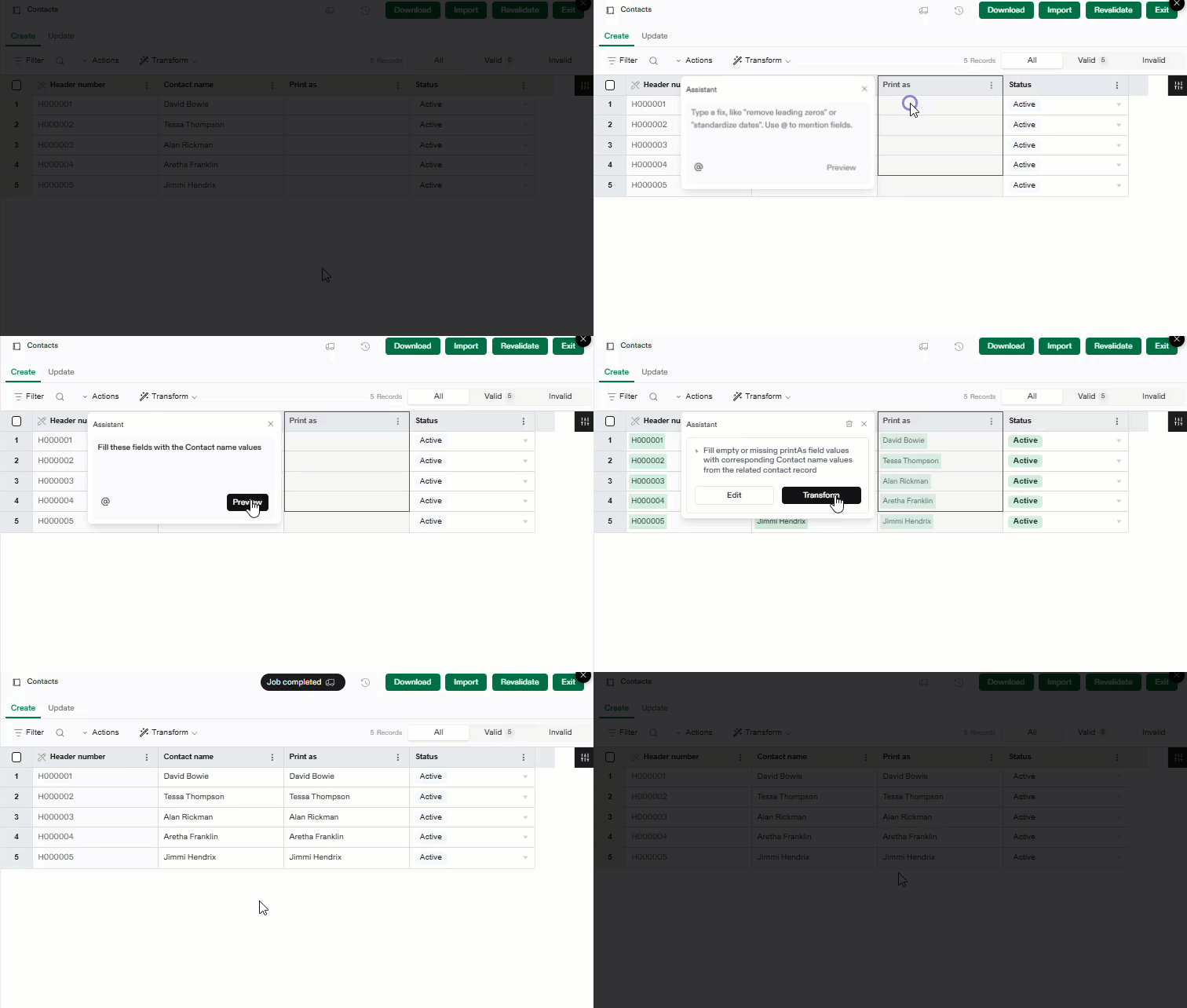
In the image above, these are the steps to use Transform to fill in the Print as column.
-
On the Contact worksheet, select the Print ascolumn menu and select Transform.
-
In the Assistant window, enter your request and select Preview.
For example, you could enter: Fill these fields with the Contact ID values.
-
The Assistant displays an interpretation of your request, and creates a preview of the changes.
In this case, the Print as column is populated with the existing Contact ID values.
-
If the suggested changes are acceptable, select Transform.
You can also select Edit to refine your request.
Hide and show columns
Use the Manage columns tool to hide columns with no data and select only the fields you want to see. This helps you focus on what matters most.
Sort, then Find and replace text
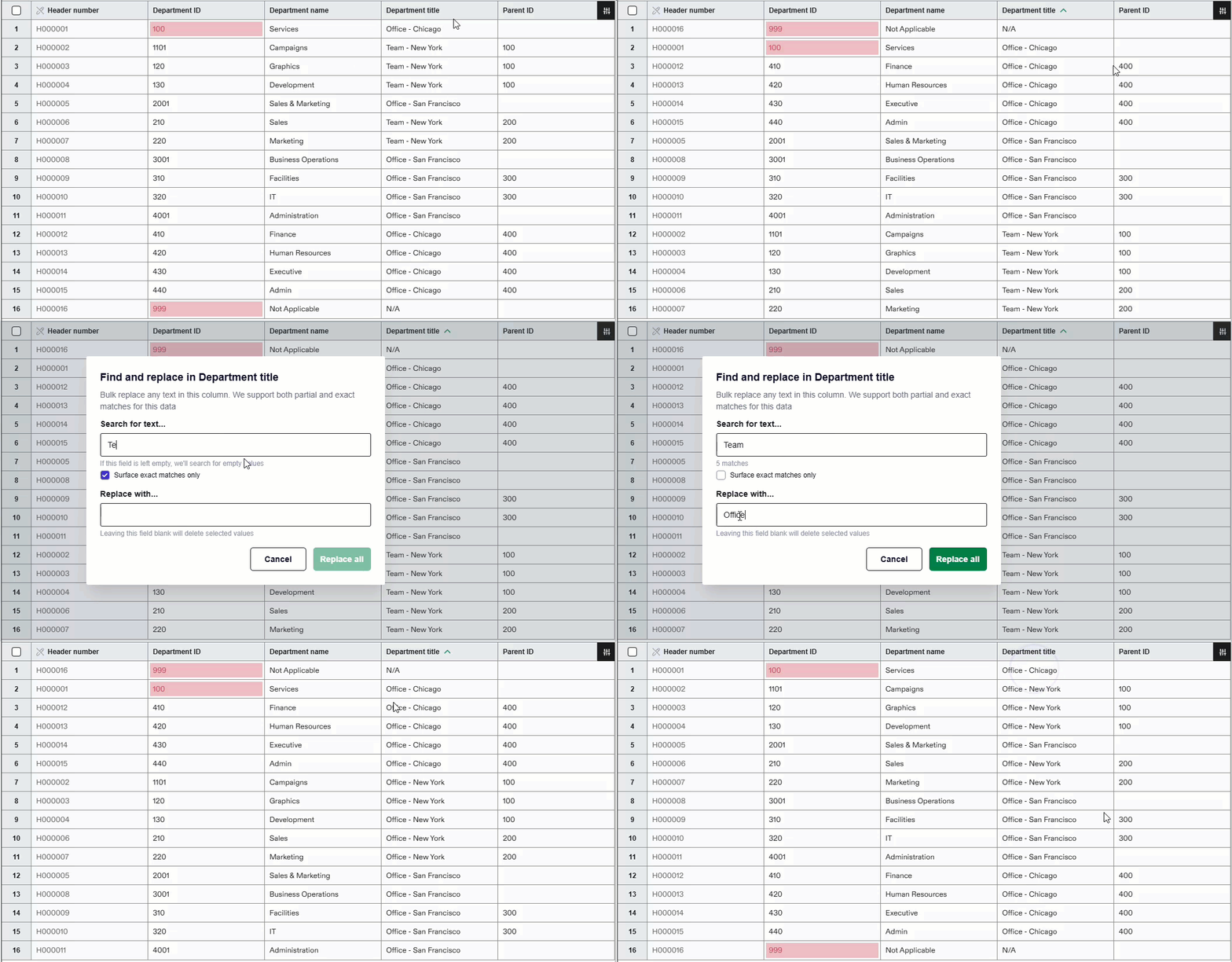
Quickly sort a column alphabetically, then use Find and replace to update values, for example, changing Team to Office in the selected column.
Clear column data
The example below shows how toClear a column of dropdown selections, and then repopulate the column with options from the dropdown menu.
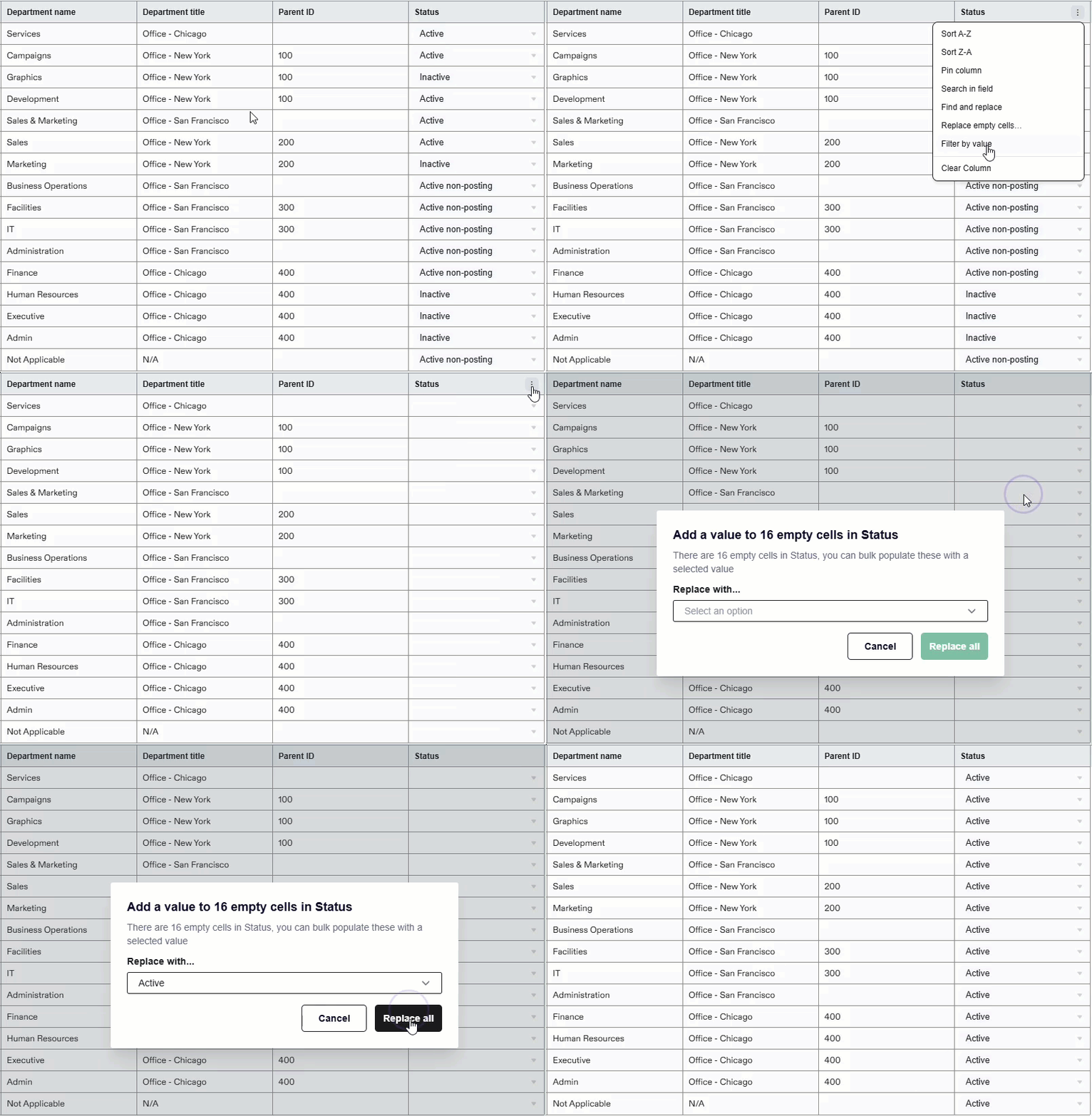
The Status column in this example has only 3 allowed entries: Active, Active non-posting, and Inactive. When you use Replace empty cells in columns with dropdown selections, such as the Status column, you can only select from those available entries.
The Status column in this example only allows three values: Active, Active non-posting, and Inactive. When you use the Replace empty cells option for columns with dropdown selections like this Status column, you can only choose from these allowed values.
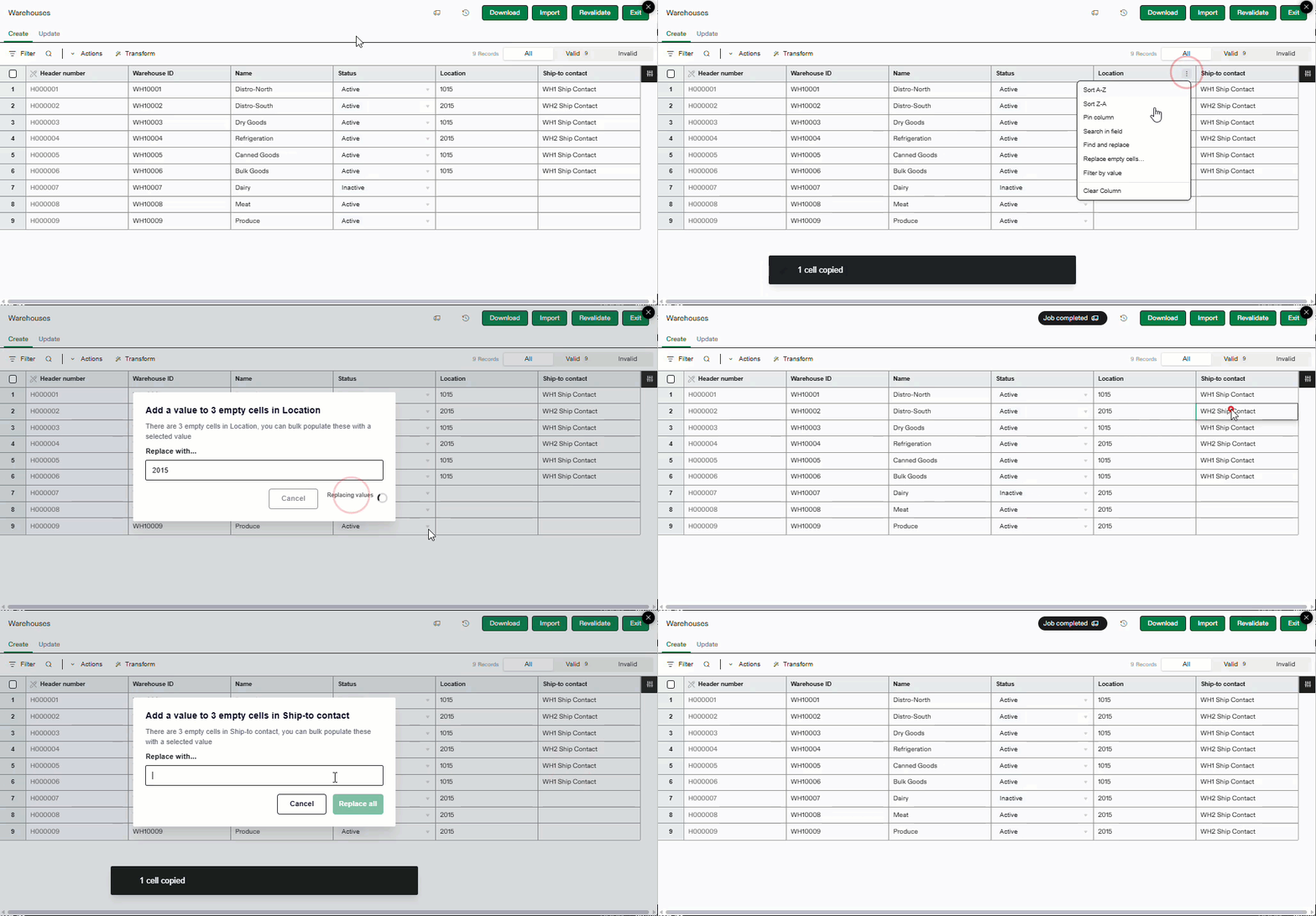
Replace empty cells
The import service sheet allows you to select a cell and copy the data. You can then use that copied data to replace empty cells, or all cells in a column. The example below illustrates how to used copied cell data to replace empty cells with that data.