Use Apply XML to modify custom SQL reports
Related information
 Related topics
When you create a custom SQL report, you manually apply all the formatting. The Apply XML feature allows you to modify custom SQL reports in Interactive Custom Report Writer (ICRW) and retain all the formatting.
ICRW automatically generates XML when you create a report. The XML provides everything you need to modify a report and retain formatting, such as column order and formatting, prompts, and comments.
Apply XML is available on the ICRW Custom tab. The examples in this topic use a simple Perpetual Calendar report to illustrate how to use Apply XML to do the following:
| Subscription | Interactive Custom Report Writer
Platform Services |
|---|---|
| Regional availability |
All regions |
| User type | Interactive Custom Report Writer: Business, Project Manager |
| Permissions |
Interactive Custom Report Writer: Run, List, View, Add, Edit, Delete Platform Services: Run, List, View, Add, Edit, Delete
|
About XML structure
The XML for an ICRW report built with custom SQL is organized as follows:
- Top section: defines the report columns.
- Middle section: contains the custom SQL.
- Bottom section: defines the views.
Go to the Custom tab and expand the Apply XML pane to view the XML structure for the report.
Column definitions
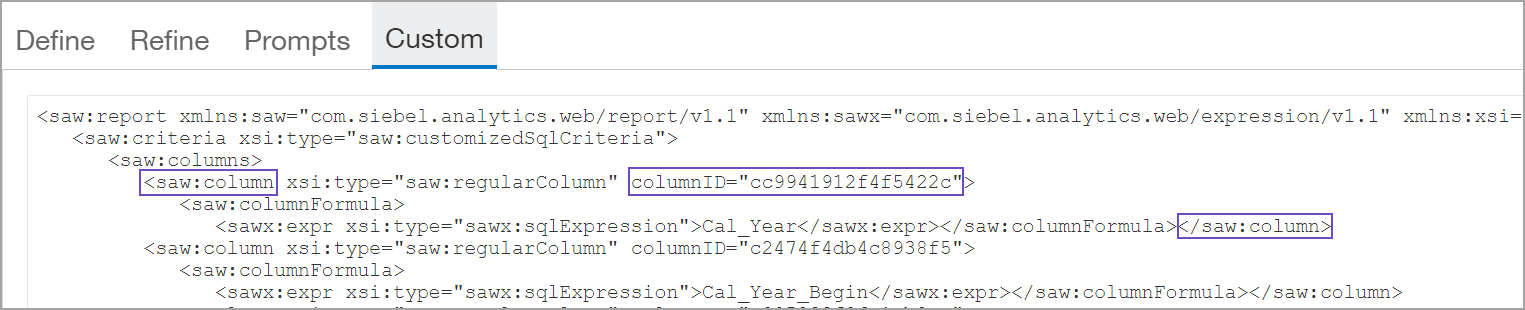
The top portion of the XML contains the definitions for the columns. Each column definition starts with saw:column and ends with /saw:column, as shown in the following example. ICRW assigns a random hexadecimal column ID for each column. This is important when you add a new column.
Custom SQL
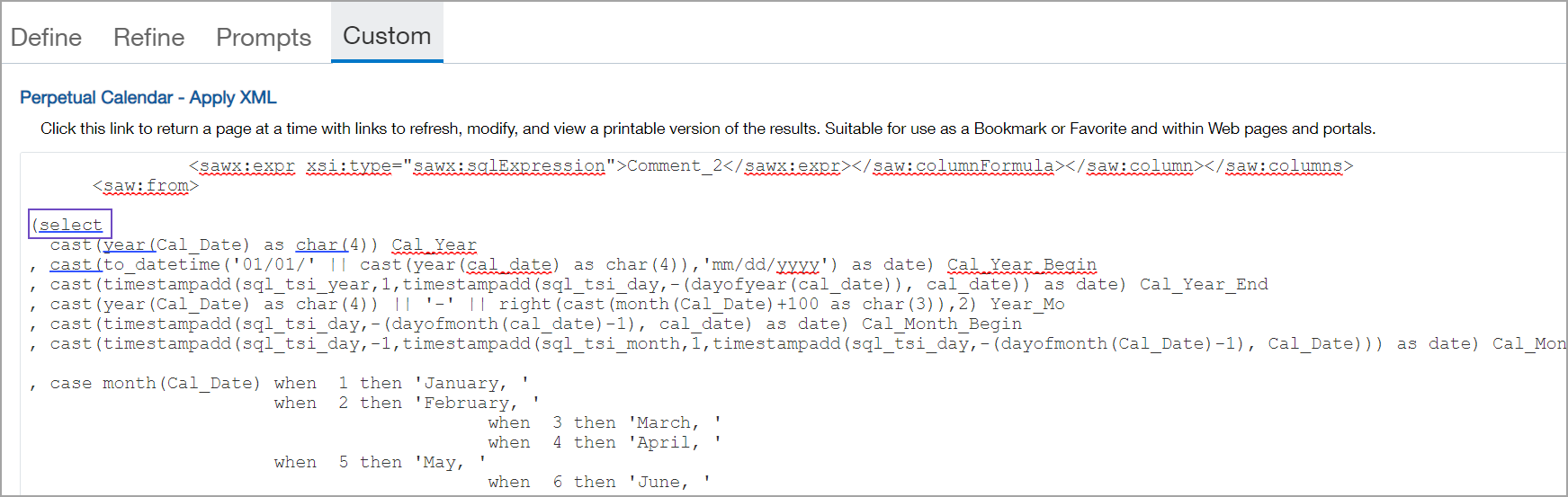
Near the middle of the XML is the custom SQL that starts with a (select statement and closes with a final parentheses for the end) statement.
Views
The views follow the end of the SQL section. Each view begins with saw: view and ends with /saw:view.
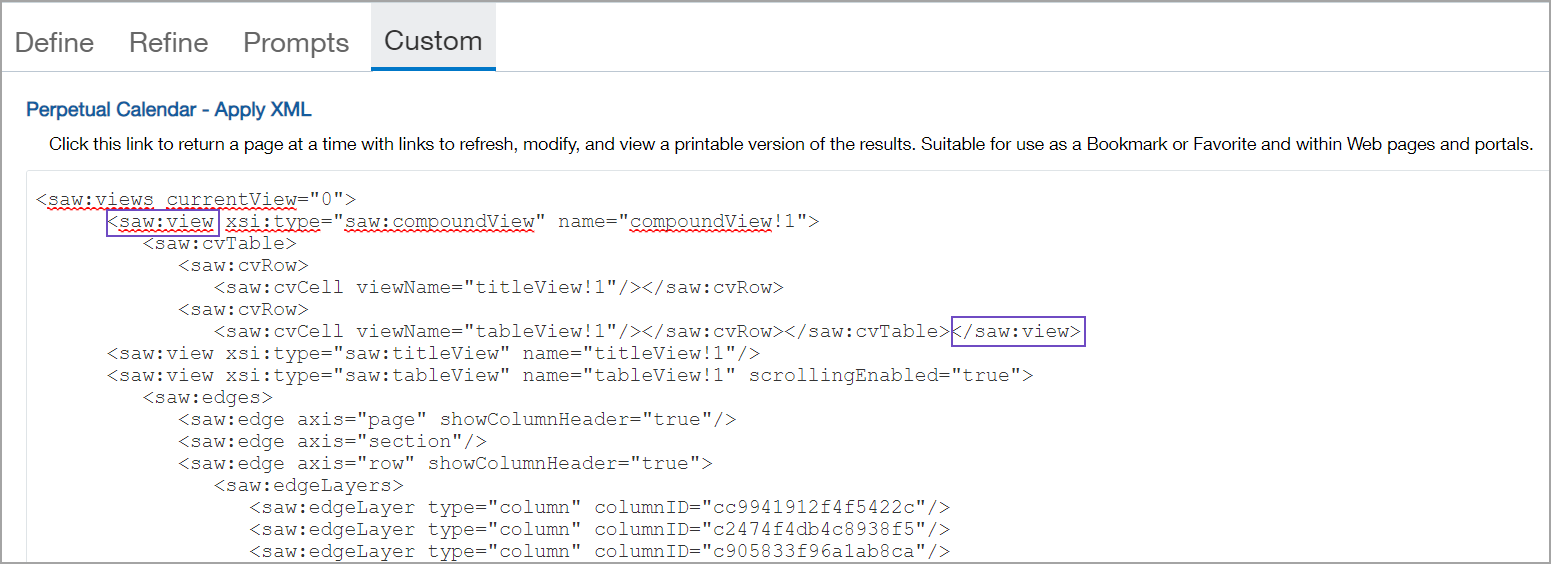
Each column reference in a view has a hexadecimal ID that was assigned by ICRW. Prompts that have been added to the report are included at the bottom of the views section.
Add a column
This section shows you how to a add a column to a custom SQL report with Apply XML.
-
Go to the Custom tab > Apply XML pane.
-
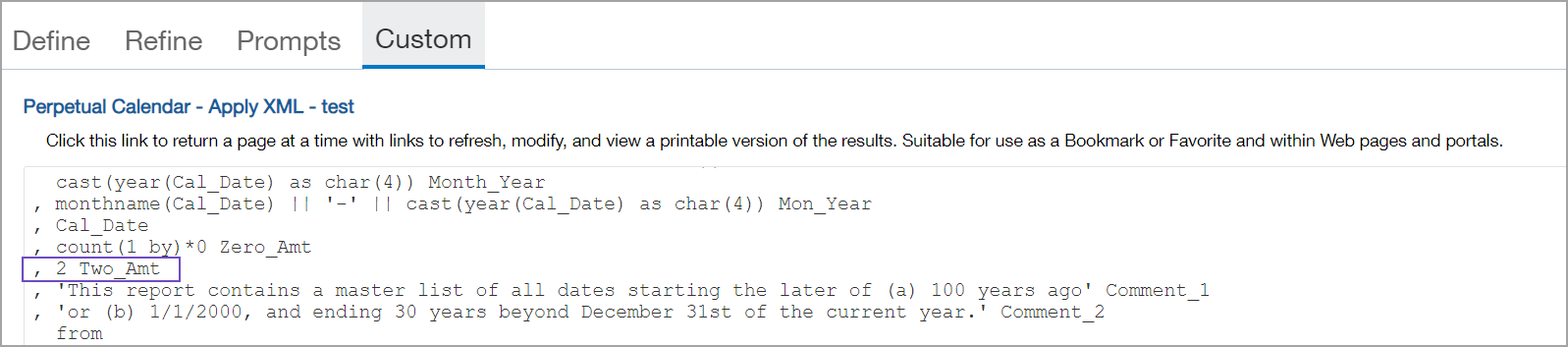
Go to the SQLsection and add a column formula.
In this example, a Two_Amt column was added after to a Zero_Amt column.
-
Go to the top section of the XML and copy a column definition with the desired formatting.
In the following example, the Zero_Amt column was copied and then modified to create the Two_Amt column.
-
Change the hexidecimal name of the new column. Hex characters are not required. You can use a columID that is a human-readable value. The following example shows the original hexidecimal column name before it is changed.
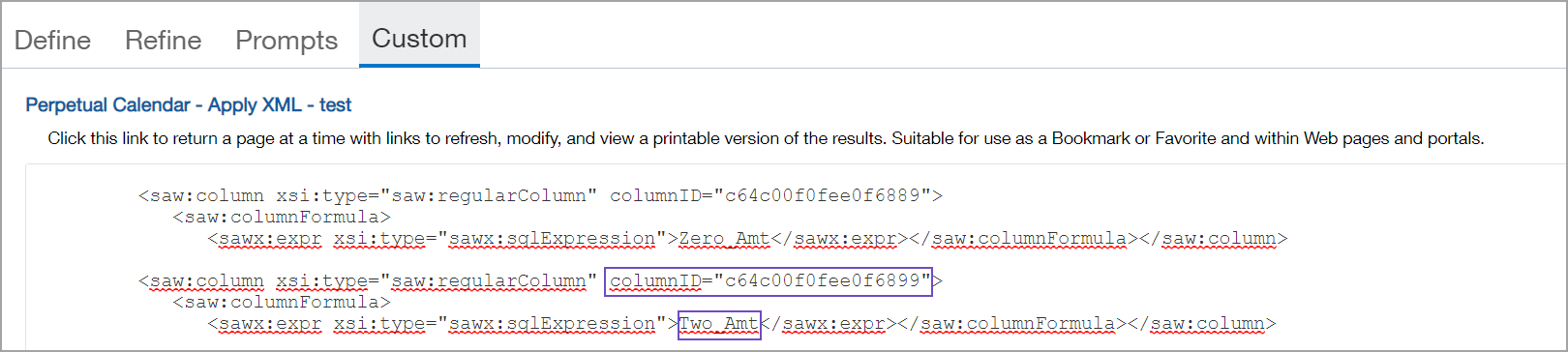
The following example shows the column name after it is changed to columnID="c_Two_Amt".
NOTE: To change all the XML column names to human-readable values, see Making XML column names human-readable.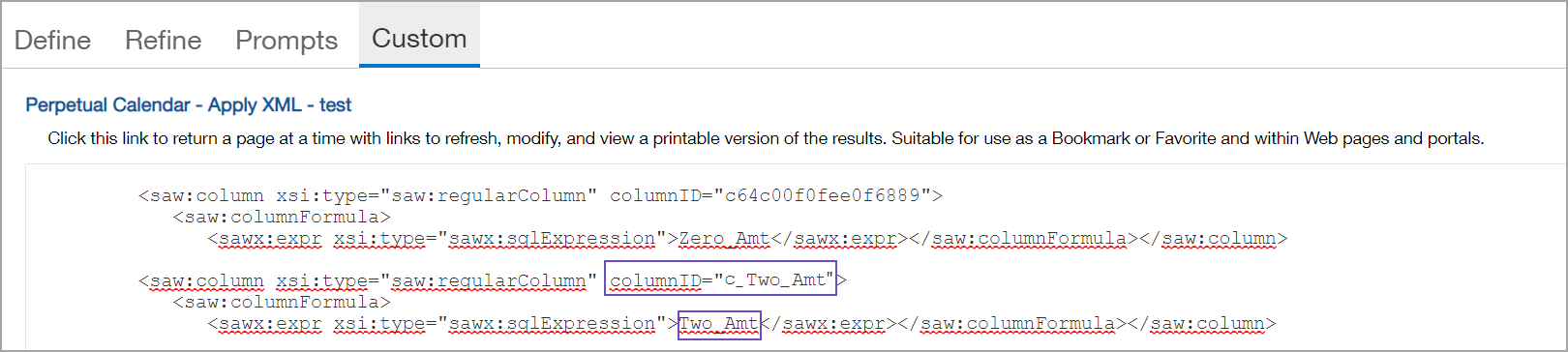
-
Select Apply XML and go to the Refine tab to view the results.
-
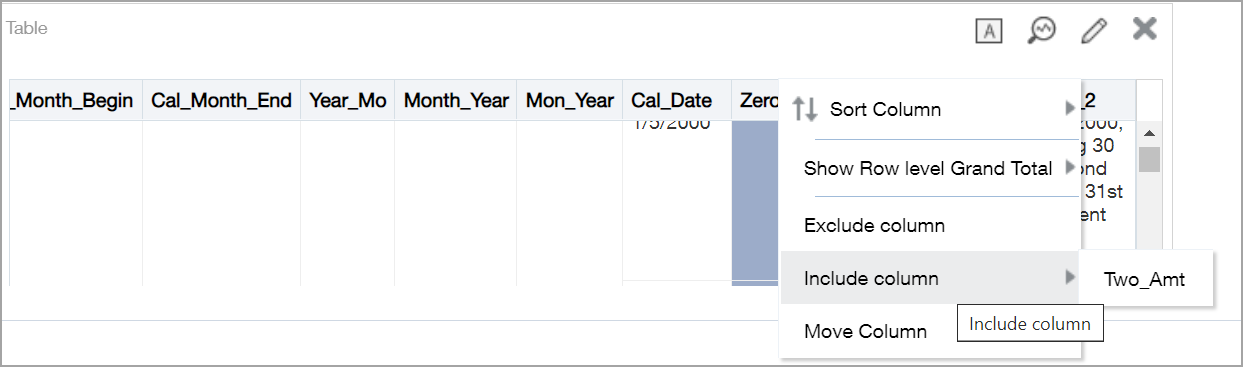
Right-click the column tile and choose Include > column_name from the dropdown menu. This adds the column in the views.
-
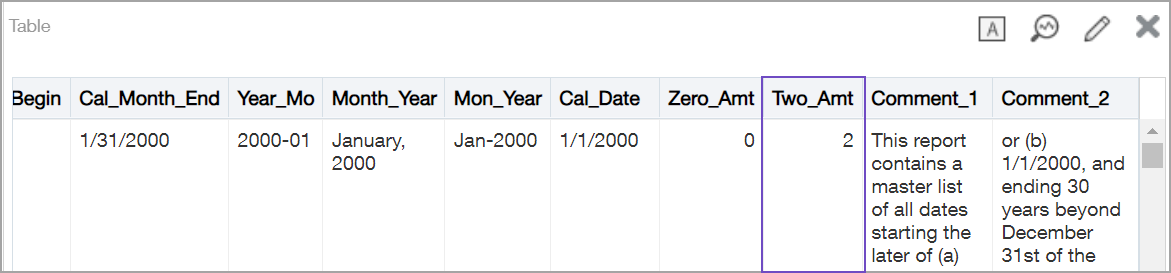
Select Apply XML and go to the Refine tab to view the results.
Making XML column names human-readable
Hex characters are not required for XML column names. To make an XML file easier to work with, you can change all the columIDs to human-understandable values. For existing ICRW reports that use the hex string values for column IDs, it is a simple procedure.
-
Copy the ICRW XML file into an ASCII text editor, such as Notepad.
-
Change all occurrences of the column hex names to human-readable values, such as c_Job_ID.
It is recommended that you prefix the column ID with c_ to clearly differentiate between the Expression and the columnID. The columnID can be as long or short as needed. Use the basic 63 characters (26 upper-case letters, 26 lower-case letters, 10 numbers, and the underscore). -
After all the column IDs are changed to human-readable values, copy the XML back into the Apply XML pane.
-
Select Apply XML and Save the report.
Now, instead of seeing the following in the Views section of the XML:
saw:view xsi:type="saw:tableView" name="tableView!1"
 <saw:edges>
 <saw:edge axis="page" showColumnHeader="true"/>
 <saw:edge axis="section"/>
 <saw:edge axis="row" showColumnHeader="true">
 <saw:edgeLayers>
 <saw:edgeLayer type="column" columnID="cb58d295f002a047e1"/>
 <saw:edgeLayer type="column" columnID="ca578b438c912ef498"/>
 <saw:edgeLayer type="column" columnID="c398e311d309b857ff"/>
You now see the following, which is much easier to interpret and work with:
saw:view xsi:type="saw:tableView" name="tableView!1"
 <saw:edges>
 <saw:edge axis="page" showColumnHeader="true"/>
 <saw:edge axis="section"/>
 <saw:edge axis="row" showColumnHeader="true">
 <saw:edgeLayers>
 <saw:edgeLayer type="column" columnID="c_Job_ID"/>
 <saw:edgeLayer type="column" columnID="c_Job_Name"/>
 <saw:edgeLayer type="column" columnID="c_Original_Contract_Price"/>
Modify text
You can easily fix typos and modify text the with Apply XML. The following task shows you how to quickly fix the misspelling in this example.
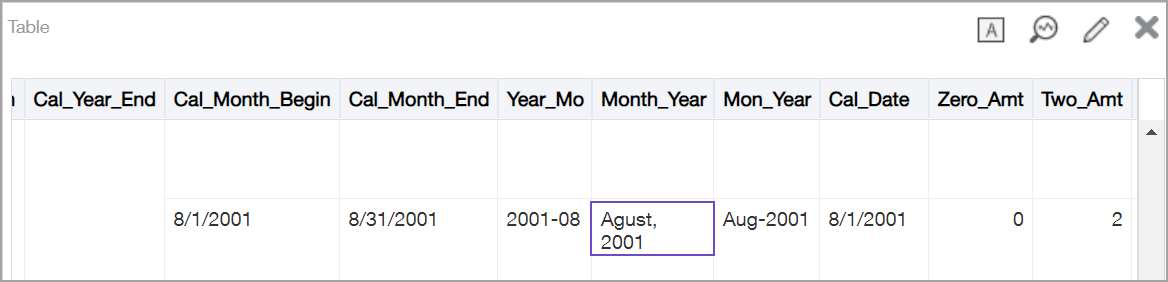
-
Go to the Custom tab > Apply XML pane.
-
Go to the SQL section of the XML and find the text you want to modify and make the necessary change.

-
Select Apply XML and go to the Refine tab to view the results.

Rename a column
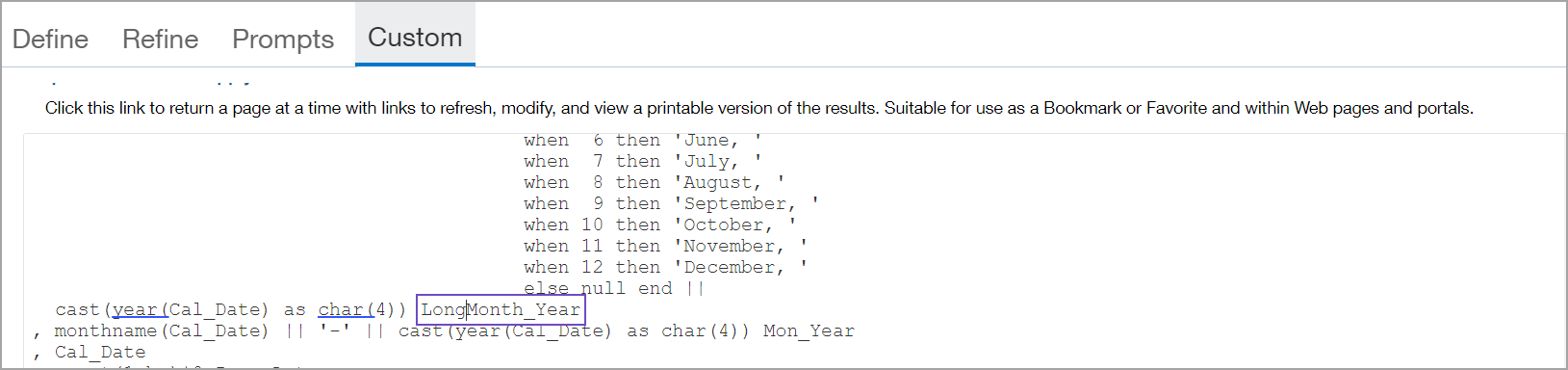
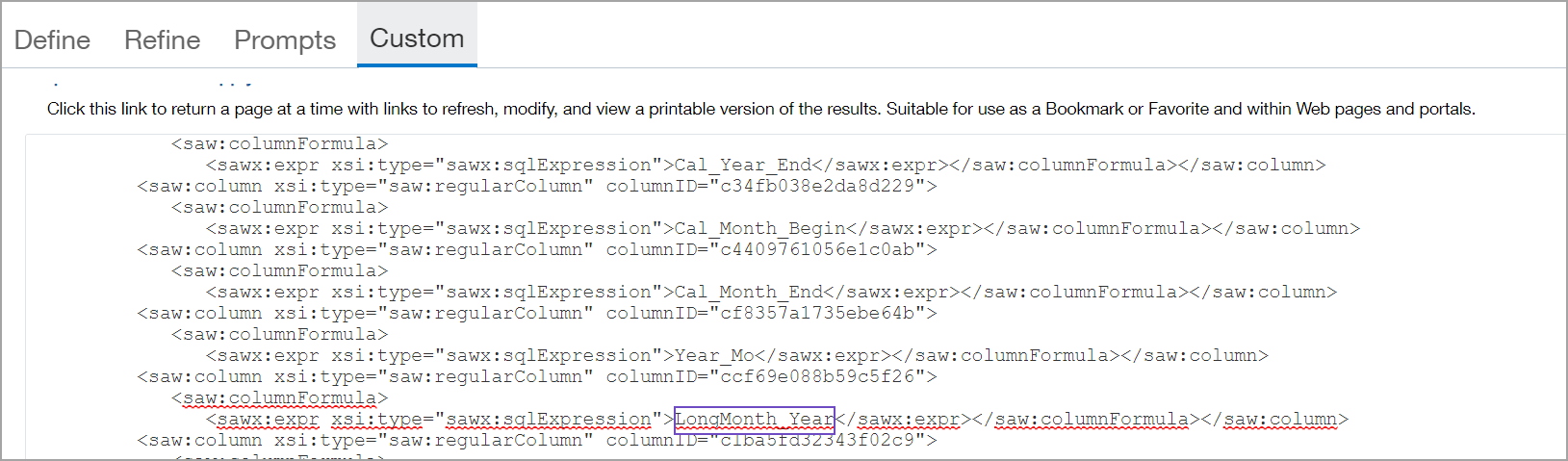
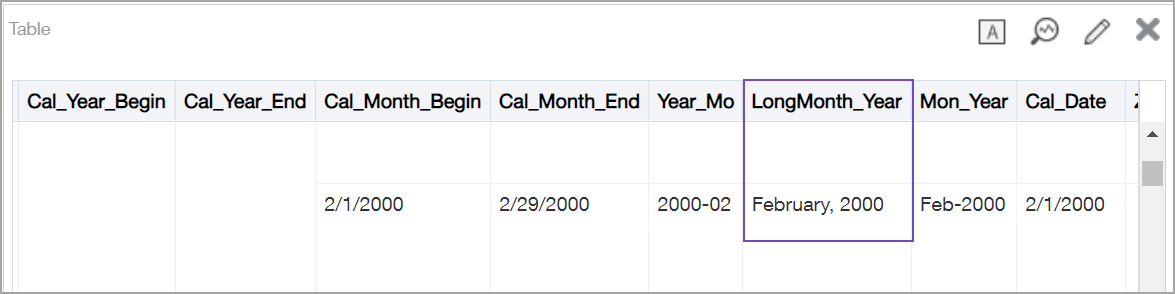
The following example shows you how to rename a column in a custom SQL report with Apply XML. In this example, the column name is changed from Month to LongMonth
-
Go to the Custom tab > Apply XML pane.
-
Find the column definition in the SQL section and modify it. In this example, the column name is changed from Month to LongMonth.
-
Find the column definition in the top section and make the same change to the column name.
-
Select Apply XML and go to the Refine tab to view the results.
Reorder views
You can easily change the order of views using Apply XML. In this example, the Pivot table will be moved before the Table.
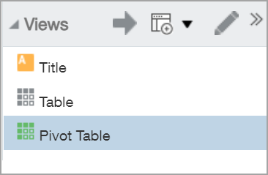
-
Go to the Custom tab > Apply XML pane.
-
In the views section at the bottom of the XML, find the view you want to move. The view starts with saw:view and ends with /saw:view
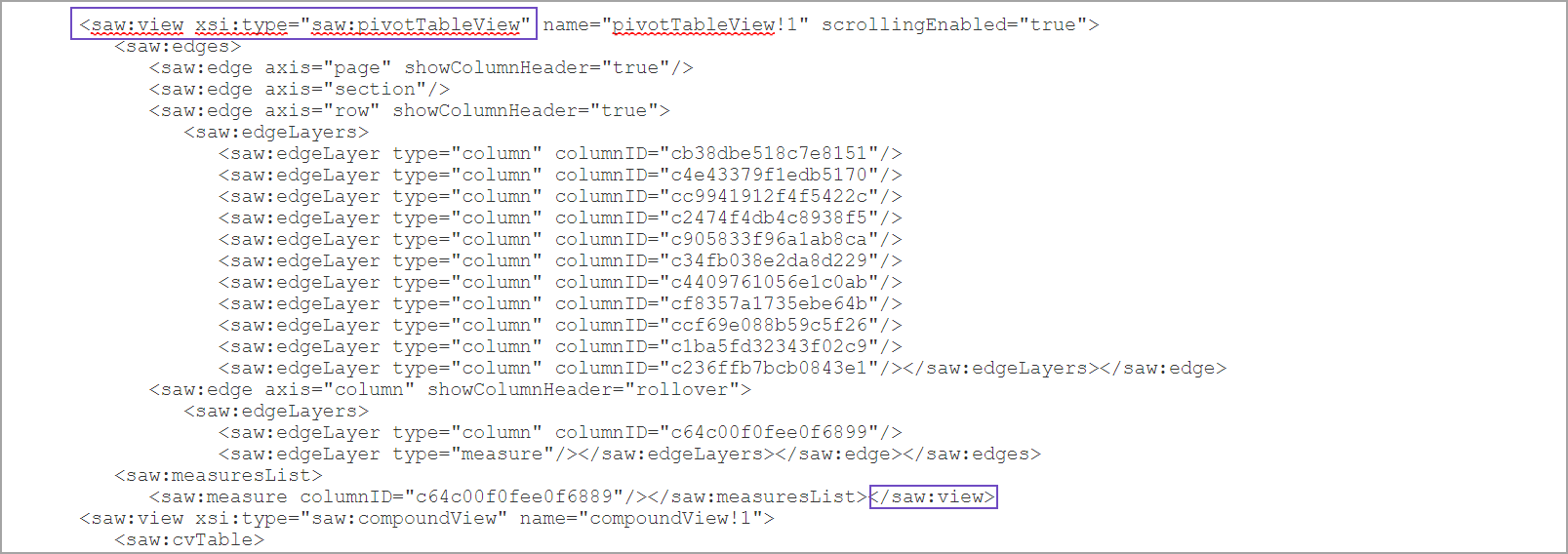
-
Copy and paste the view in the new location.
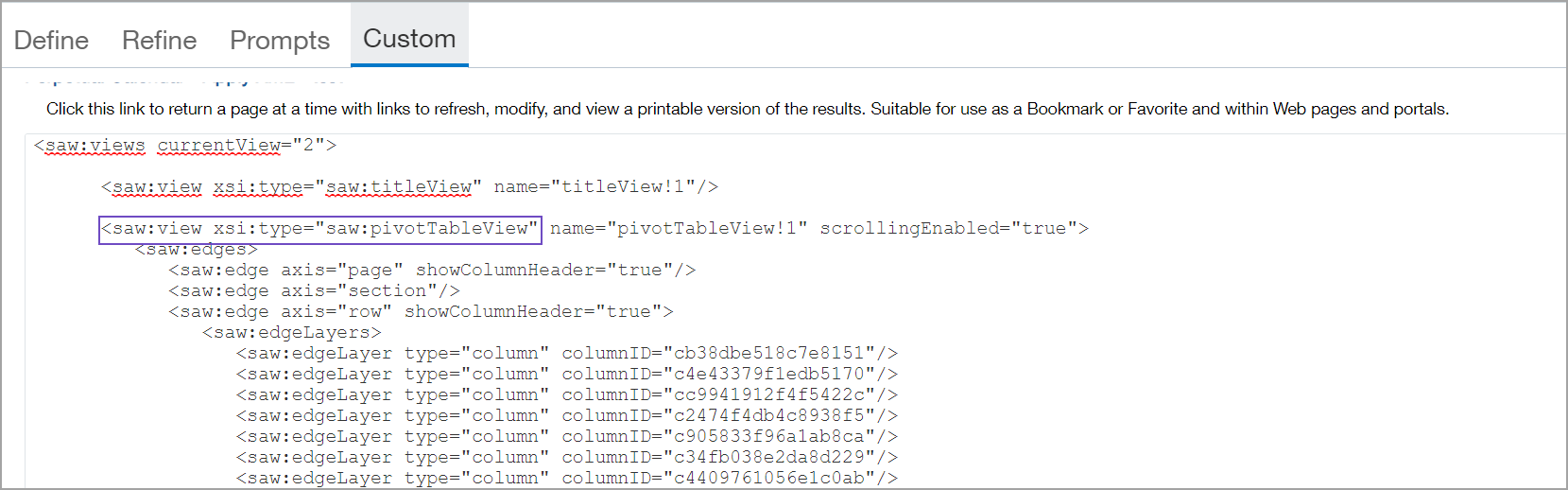
-
Select Apply XML and go to the Refine tab to view the results.
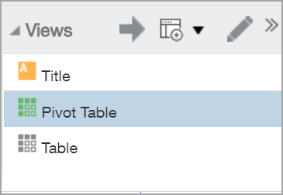
Delete a column
You can delete columns in the Apply XML pane in the following way.
1. Go to the Custom tab > Apply XML pane.
2. In the SQL section and delete the column formula.
3. In the top section, find the column, and delete it to remove it from the Views.
4. Delete the column from the bottom reporting areas section.
5. Select Apply XML and go to the Refine tab to view the results.
