Switch currencies and drill down to financial data
Related information
 Related topics
By default the values in the Financial summary section of the Project summary are displayed in the base currency. When you switch to another currency, the values update to the selected currency immediately.
If you have the right permissions, you can drill down to the financial data. The details in the General Ledger report are in the base currency.
| Subscription |
One of the following subscriptions is required:
|
|---|---|
|
Regional availability |
All regions Construction: US, UK, CAN, ZA, AUS |
| User type |
Business Construction Manager Project Manager |
| Permissions |
Projects: List, View, Add, Edit Users must have permission to access to the data contained in the project. Explicit permission to run the General Ledger (GL) report is required to drill-down and view the report data. |
About the Project summary tab
The Project summary tab, on the Project information page, provides a snapshot of the financial performance of a project.
The Project summary tab displays details on revenue, project projections, hours, and expenses that enable you to assess how a project is performing.
- Go to Projects > All > Projects.
- Find the project in the list and select the Project name link.
- On the Project information page, select the Project summary tab.

Financial summary
The Financial summary section on the Project summary tab summarizes the financial data for all global projects from the top level. At the top level, the projected billing amount, cost amount, and duration are considered projections for the overall project. By default, the projections are shown in the base currency.
Where do the Financial Summary figures come from?
The values in the Financial Summary section are based on the account groups that you selected when you configured the Projects application.
You can verify or edit the account groups in the following way.
- Go to
- Find the Project summary section.
For example, the amount for Total Wages is calculated using the accounts in the account group that you selected for Wages. - To specify the labels, select Use account group "display as" names instead of above labels.
This allows you to use the Payments field to a different financial metric, such as Indirect Costs.
Select and view currencies
You can find the Display currency dropdown menu in the Financial Summary section of the Project summary tab. The base currency for the project is shown by default. Use the dropdown to select and view the financial summary information in the currency of your choice.
The Display currency menu is blank until you select another currency. The following example shows the default currency as US dollars (USD).
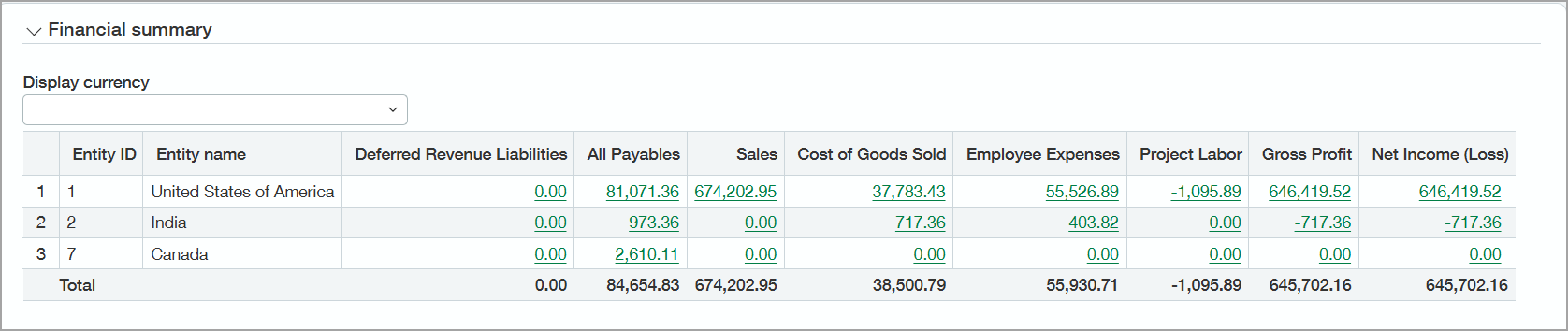
When you select a currency, that currency selection is applied to Financial summary data exclusively. The following example is of a project with numerous locations.
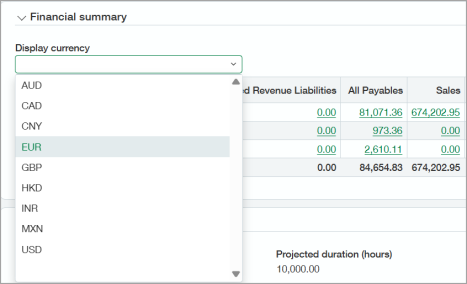
Drill down to Financial summary data
The Financial summary shows up-to-date information about key financial metrics such as your gross profit, net income, deferred revenue, cost of goods sold, and wage expenses. You can select a link to drill down to the financial summary data in the General Ledger (GL) report.
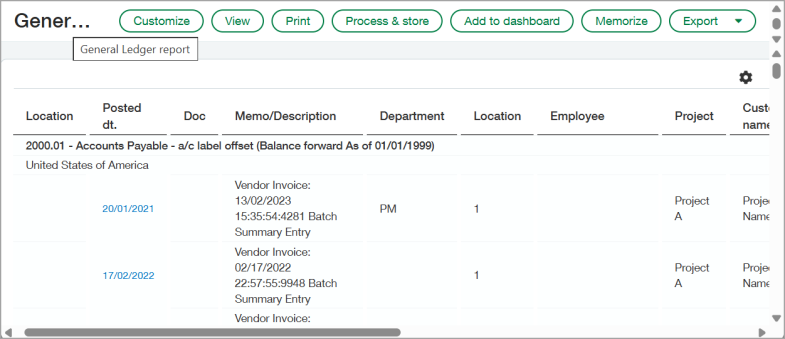
When you select a link in the financial summary data, a General Ledger report dialog appears. The source GL balance data is shown in the original transaction base currency.
The following is an example of General Ledger report data for United States of America All Payables.
If a project was created at the top level but assigned specifically to an entity, the fields for projected billings, cost, and duration are read-only if viewed from the entity level.
If a project has been created at the entity level and you view the project summary from the entity level, you'll see project data for that one entity only. You can enter amounts for projected billings, cost, and duration. If you view the project from the top level, these fields are read-only.
Troubleshooting tips
Explicit permission to run the General Ledger (GL) report is required to drill-down and view the report data. For information on your assigned user permissions, contact your Sage Intacct administrator.
Users might be assigned permission to only view or transact in certain entities or departments. Financial summary drill-down restrictions prevent users from seeing data on a project that is coded to a department or entity outside of their assigned permissions.
For information on your assigned user permissions, contact your Sage Intacct administrator.
Learn more about permissions
If you'd like to expand your knowledge on user permissions and how they work in Sage Intacct, see the following help and video:
