ICRW report returns empty rows
Related information
 Related topics
This Interactive Custom Report Writer (ICRW) example is of a report written with custom SQL that returns several empty rows. The root cause is determined and a solution is provided.
| Subscription | Interactive Custom Report Writer
Platform Services |
|---|---|
| Regional availability |
All regions |
| User type | Interactive Custom Report Writer: Business, Project Manager |
| Permissions |
Interactive Custom Report Writer: Run, List, View, Add, Edit, Delete Platform Services: Run, List, View, Add, Edit, Delete
|
Problem
A construction company administrator created an ICRW report using custom SQL that returns several unwanted empty rows. They want to know why the blank lines appear in the following report and how to eliminate them.
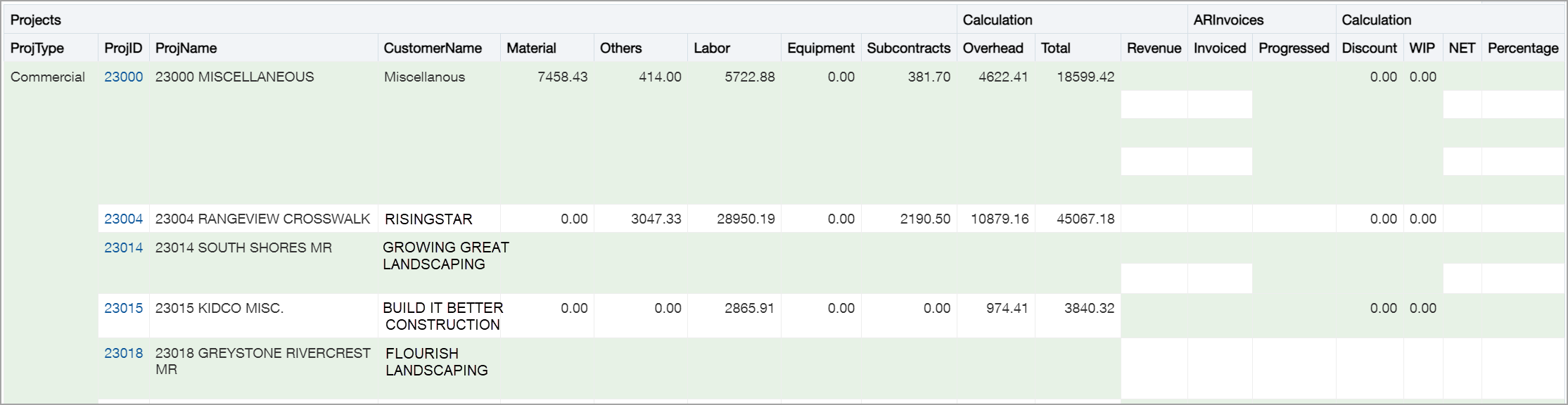
Finding the root cause
Before you can begin the process of determining the root cause, display the table in a basic tabular format, with no special characteristics. To do that, and do the following:
- Go to the Table Properties.
- For Duplicate Values, select the Repeat checkbox for each row’.
- For Row style, deselect the Enable alternate style checkbox for each row.
Performing these 2 steps changes the display to show exactly what’s happening in the report, as shown in the following example.
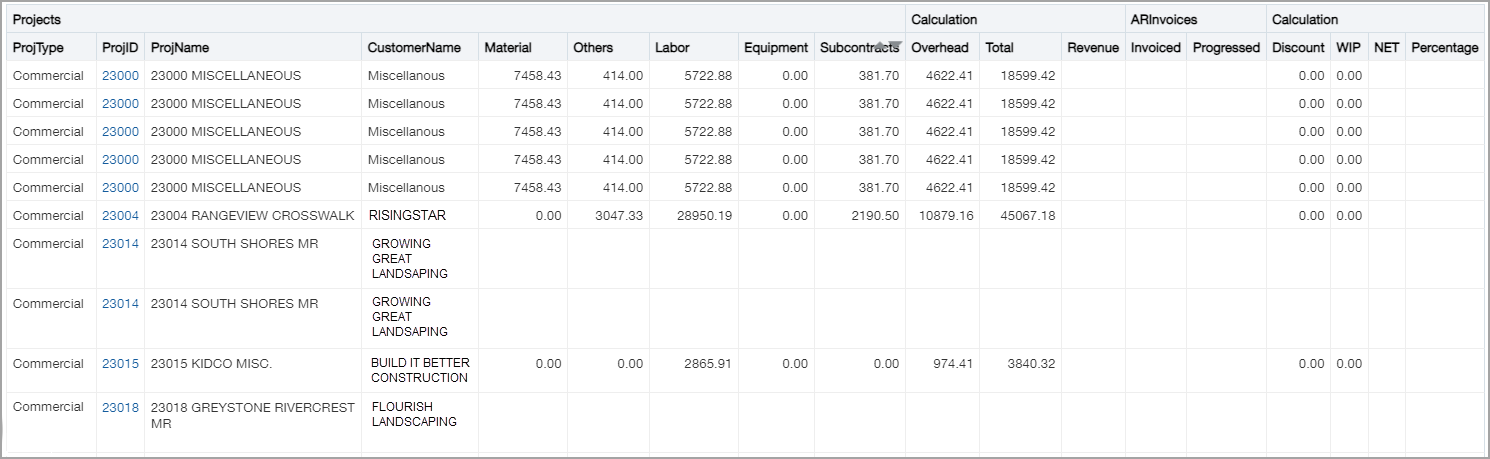
In the tabular view of the example report above, five lines are associated with the first project (ProjID 23000) that appear to be identical. Identical lines typically mean that there's a column present in the data that's not included in the report.
Step 1: Find columns tagged as hidden
When diagnosing an ICRW report with multiple duplicate lines, look for columns tagged as hidden in the column properties or in the Table view.
Go to the Define tab and look at the column properties for each column. This example report does not reveal any hidden columns in the report criteria. However, the Table view shows a grayed out tile for the ProjDrillID column indicating that it is hidden.
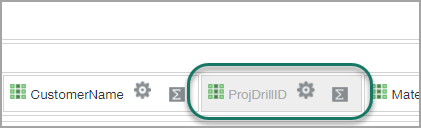
Unhiding the ProjDrillID column revealed the same ProjDrillID column for each of the 5 rows. This discovery means the ProjDrillD column is not responsible for causing the duplicate lines.
Step 2: Find columns in data that are not in the report
Next, you need to determine if there are any columns present in the data that are not present in the report. In a report built using Custom SQL, this condition is easy to create. It is caused by the SQL returning columns that are not listed in the topmost section of the Report XML on the Custom tab.
In this example report, there are three such columns. The SQL creates the columns, but the columns are not defined in the topmost section of the Report XML:
- InvDrillID (from "ar:AR Invoices"."Invoice"."DRILLID")
- OEDrillID (from "ar:AR Invoices"."Order entry transaction"
- CubicMeters (from "ap:AP Bills"."AP bill detail Attributes"."CUSTFIELD1_DOUBLE")
The data returned from the database contains the three columns. However, the columns were not defined for use in the report. In effect, they’re hidden columns without any way to know they exist. They will not be present on the Define tab.
The data in these columns is in the table, but the column widths were collapsed to a width of 0 pixels. However, these columns are not only hidden, they’re invisible. They do not appear on the Define tab, and yet exert a confusing effect on the results.
Solution
One solution is to add the three columns to the top section of the Report XML.
The results after adding the three columns to the top section of the Report XML are shown in the following example. The duplicate rows no longer appear.

An alternative solution might be to omit the three 'missing' columns from the Custom SQL. A best practice is to generate only those columns that are desired in the output. Either way, the columns returned by the SQL must match the columns defined in the top section of the XML.
The example report still shows rows (such as ProjID 23014) without any numeric data. Those rows were produced per the SQL instructions. The only stipulation was that the Customer Name is not null. The numeric columns were added using a Left Join. No filters were included that omit rows that do not have any numeric data.
After the report returns the correct results, you can re-enable alternate row styling and the suppression of duplicate column values, if desired.
