Statistical accounts
Related information
 Related topics
Use the Statistical Accounts page to add a new statistical account, or change the information for an existing one.
Statistical accounts are used to track nonfinancial data, such as employee headcount, number of members, or even the number of rooms in a hotel. Tracking key metrics in this type of account allows you to perform sophisticated analysis in financial reports, such as calculating revenue per employee or advertising expenses per member. (The method for calculating information on reports is specified in account groups.)
| Subscription |
Company General Ledger |
|---|---|
| Regional availability |
All regions |
| User type |
Business user with admin privileges Employee Approver |
| Permissions |
View statistical accounts: List, View Manage statistical accounts: List, View, Add, Edit, Delete Statistical account numbers: Edit (if you need to change the account number) |
Add a statistical account
When you add statistical accounts, assign a different account range so that statistical accounts are not inadvertently grouped with General Ledger accounts. Statistical accounts can be consolidated similarly to general ledger accounts, if you have a consolidated structure of companies with subsidiaries.
Individual statistical accounts are typically rolled up into account groups for use in reports.
-
Go to General Ledger > All > Accounts and select Add (circle) beside Statistical accounts.
-
Enter the account number.
The subaccount is optional.
The number of characters allowed for account numbers is set when the chart of accounts is created, to a maximum of 24. The number of characters allowed can differ between companies.
When you add statistical accounts, assign account numbers in a different account range so that statistical accounts are not inadvertently grouped with general ledger accounts on reports. - Enter the account title, such as "Headcount," as you want it to appear on reports.
- To assign a category to this account, select the down arrow in the Category dropdown list, and then select a category.
If your company was created with a QuickStart template, you can assign the account to a predefined account category. For example, for a "Headcount" report, you can select the "Employee Headcount" category.
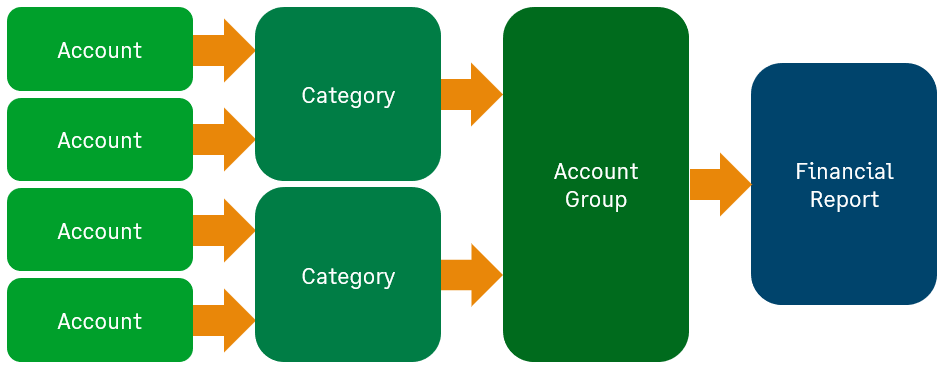
Although primarily used with non-statistical general ledger accounts, account categories are used to help you quickly create financial reports. Categories are part of the QuickStart template, and are included in the chart of accounts import template. Use the template to import chart of account information, including the categories assigned to your accounts. You can't create new categories.
Learn more about account categoriesThe Category field is displayed only for companies that were created with a QuickStart template or that selected one later. If your company was created with a setup template, categories are permanently pre-assigned to account groups, which are used in pre-designed standard financial reports and graphs. If your company selected a setup template after it was created, you need to map the account groups.
For example, assign the Petty Cash account to the category Cash and Cash Equivalents. This category is subsumed into the Cash and Cash Equivalents account group and appears on financial reports and graphs that contain this account group. If you do not want this account to be in your financials, delete the text in this field so that it's blank.
-
To suppress unused accounts from appearing in list pages, dropdown lists, and pick lists, select Inactive from the Status dropdown list.
You can still list inactive accounts by selecting the Include inactive checkbox.
-
In the Require dimensions section, select the dimensions that you want to require for transactions.
If you select a dimension, when users create a transaction for this account, they must select a dimension for that required dimension field to submit the transaction.
What are dimensions?A dimension is a category of data that you can organize and sort in meaningful ways. Sage Intacct provides the following predefined dimensions:
- Location
- Department
- Class
- Customer
- Item
- Project
- Supplier
- Employee
- Warehouse (if you subscribe to Inventory Control)
- Contract (if you subscribe to Contracts)
In addition, Intacct enables you to define new dimensions to suit your needs. Use these user-defined dimensions to organize and sort categories of data unique to your business. For example, if you’re a software company with multiple product lines, you can create a user-defined dimension called Line of business. Then add the values Direct customers, Channel partner, and OEM.
Dimensions enable you to collect, sort, analyze, and report on data within one category, or between categories, so you can identify key factors such as:
- Your most profitable or most costly items or customers
- The return on investment of a project or department
- Whether and to what degree a new product or product line is successful
- Which way a particular aspect of your business is trending
- Intacct dimensions give you fine control over data definition and data hierarchy
With dimensions, you can customize financial reports around specific business activities, get greater visibility into how the business is doing, and make faster, more meaningful business decisions.
Think of dimensions as a more powerful alternative to subaccounts.
Additional fees can apply for the Project dimension and user-defined dimensions. Contact your account representative for more information.
- Select Save.To save this record and create another one, select Save & new. Another blank Information page displays for you to enter the name and description of the next record that you want to add.
Edit a statistical account
-
Go to General Ledger > All > Accounts > Statistical accounts.
- Find the account.
-
Select Edit at the end of the row.
- Enter changes as needed.
- Select Save.
-
Go to General Ledger > All > Accounts > Statistical accounts.
- Find the account.
- Select Edit.
- Enter changes as needed.
- Select Save.
Import statistical accounts
The enhanced list for Statistical accounts allows you to use the import service to import account information.
- Go to General Ledger > All > Accounts > Statistical accounts.
- Ensure that the enhanced list is turned on.
- Select Import.
The import service opens.
Learn how to import Statistical accounts with the import service.
