
Intacct Lightning-Anwendung: Intacct-Synchronisierung
Zugehörige Informationen
 Related topics
Das Paket "Erweiterte CRM-Integration" von Intacct enthält eine Intacct-Anwendung, die über unterschiedliche Steuerelemente für verschiedene Aspekte der Integration verfügt.
Sie können die Intacct-Anwendung auch als Vorlage zum Anpassen Ihrer eigenen Salesforce-Anwendungen verwenden. Die Intacct-Anwendung kann auch zum Testen oder Demonstrieren der Integration verwendet werden.
So öffnen Sie die Intacct Lightning-Anwendung:
- Melden Sie sich bei Salesforce als Administrator an.
- Öffnen Sie das App-Startprogramm und wählen Sie Intacct.
Die Intacct-App wird geöffnet. - Auswählen Intacct-Konfiguration , um allgemeine Informationen zu Ihrer Integration anzuzeigen.
Sie können auch über die Salesforce Classic-Benutzeroberfläche auf die Seiten der Intacct Lightening App zugreifen.
Eine Übersicht über die Integrations- und Synchronisierungseinstellungen finden Sie auf der Intacct-Synchronisierung Tab auf dem Intacct-Konfiguration Seite in Salesforce.
Allgemeines
Die Allgemeines Tab von Intacct-Synchronisierung Zeigt Ihnen die allgemeinen Einstellungen Ihrer Integration an.
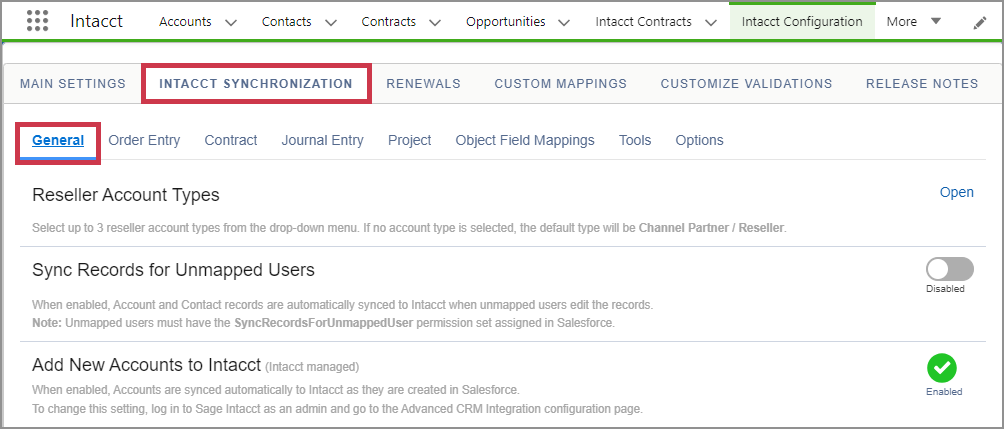
Reseller-Kontotypen
In diesem Dialogfeld können Sie bis zu drei auswählen Reseller-Konto Typen. Wenn kein Kontotyp ausgewählt ist, lautet der Standard-Kontotyp Vertriebspartner/Reseller.
Datensätze für nicht zugeordnete Benutzer synchronisieren
Wenn aktiviertwerden Konto- und Kontaktdatensätze automatisch mit Intacct synchronisiert, wenn nicht zugeordnete Benutzer die Datensätze bearbeiten.
Der Rest der Tab "Allgemein" zeigt Einstellungen an, die auf der Seite "Konfiguration für die erweiterte CRM-Integration" in Intacct gesteuert werden. Informationen zum Hinzufügen neuer Konten zu Intacct finden Sie beispielsweise unter Kontoeinstellungen.
Auftragserfassung (Legacy)
Die Auftragserfassung Tab von Intacct-Synchronisierung Ermöglicht das Festlegen von Datensatztypen und -phasen sowie das Erstellen von Feldern für die Auftragserfassung. Auf diesem Tab werden auch Einstellungen angezeigt, die für Ihre Integration mit der Auftragserfassung spezifisch sind.
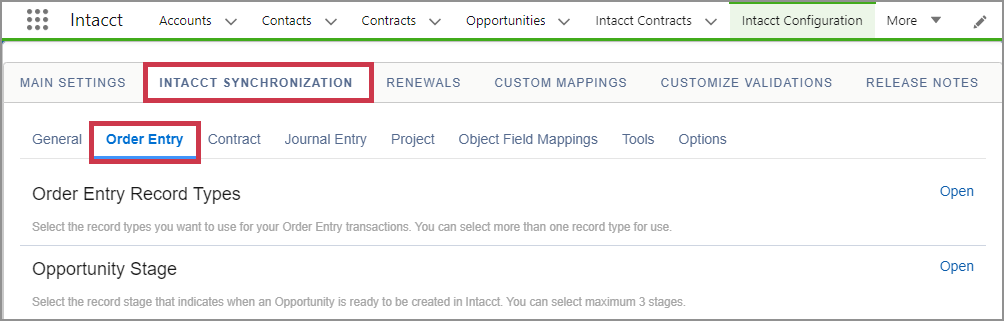
Datensatztypen der Auftragserfassung
Weitere Informationen zu Datensatztypen für die Auftragserfassung, siehe Benutzerdefinierte Datensatztypen für Geschäftschancen für die Auftragserfassung.
Geschäftschancenphase
Wählen Sie die Datensatzphase aus, die angibt, wann eine Geschäftschance in Intacct erstellt werden kann. Sie können Maximum drei Phasen auswählen.
Job für Geschäftschancen synchronisieren
Job für die Synchronisierung von Geschäftschancendatensätzen mit Intacct planen. Der Name der Terminierung muss eindeutig sein.
Auftragserfassungsfelder erstellen
Prüft und erstellt automatisch die Felder "Auftragserfassung" für die Vorlage für die Verlängerung und die Vorlagen für die Umsatzrealisierung.
Verkaufsbeleg – Standardwerte
Verwenden Sie Tool für Feldstandards um die Standardfeldwerte für Verkaufsbelege zu definieren, die bei der Erstellung eines Verkaufsbelegs verwendet werden.
Wählen Sie den Standardwert für beliebig viele Felder in einem Verkaufsbeleg aus. Dies ist Teil des erweiterten Sales Dokument Workflows.
Verkaufsbeleg-Standardwerte – Artikel
Verwenden Sie Tool für Feldstandards , um die Standardfeldwerte für Verkaufsbelegpositionen zu definieren, die bei der Erstellung eines Verkaufsbelegposition verwendet werden.
Wählen Sie den Standardwert für beliebig viele Felder in einem Verkaufsbeleg aus. Dies ist Teil des erweiterten Sales Dokument Workflows.
Verkaufsbeleg und Verkaufsbelegposition – Zuordnung
Mit diesem Tool können Sie Verkaufsbelege und Artikel zuordnen mit den Objekten Verkaufsbeleg und Verkaufsbelegposition erstellen.
Job für Verkaufsbeleg anlegen
Planen Sie Jobs zur Erstellung von Datensätzen für Verkaufsbelege und Verkaufsbelegpositionen. Der Zeitplanname muss eindeutig sein.
Job zur Synchronisierung von Verkaufsbelegen
Job zur Synchronisierung von Datensätzen für Verkaufsbelege mit Intacct planen. Der Zeitplanname muss eindeutig sein.
Vertrag
Die Vertrag Tab von Intacct-Synchronisierung ermöglicht es Ihnen, verschiedene Optionen für Ihre Integration festzulegen, und zeigt Ihnen Einstellungen an, die für Ihre Integration mit Verträgen spezifisch sind.
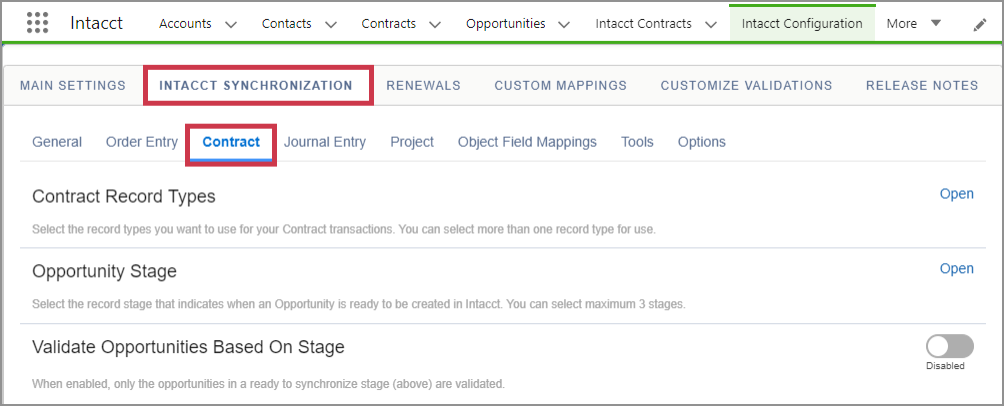
Vertragsdatensatztypen
Weitere Informationen zu Vertragsdatensatztypen, siehe Benutzerdefinierte Datensatztypen für Geschäftschancen für die Auftragserfassung.
Geschäftschancenphase
Wählen Sie die Datensatzphase aus, die angibt, wann eine Geschäftschance in Intacct erstellt werden kann.
Geschäftschancen anhand der Phase validieren
Wenn diese Option aktiviert ist, werden nur die Geschäftschancen in einem Bereit zur Synchronisierung validiert werden. Die Phase "Bereit zur Synchronisierung" muss im Datensatz Geschäftschancenphase.
Vertragsstatus
Legen Sie den Vertragsstatus fest, der angibt, wann ein Vertrag in Intacct erstellt werden kann.
Standarddatensatztyp für "Zusätzliche Chance"
Wählen Sie den Datensatztyp aus, den Sie als Standard für zusätzliche Geschäftschancen verwenden möchten.
Wenn hier kein Wert ausgewählt ist, wird der Datensatztyp für zusätzliche Geschäftschancen von der Original-Geschäftschance übernommen.
Zusätzliche Standard-Geschäftschancenphase
Dieser Wert wird standardmäßig auf "Zusätzliche Geschäftschancen" gesetzt. Wenn kein Wert ausgewählt ist, wird die erste Phase aus der Auswahlliste ausgewählt, um die neue Geschäftschance zu erstellen.
Vertrag nur einmal synchronisieren
Weitere Informationen finden Sie unter Optionen für die Synchronisierung von Verträgen.
Standardfeld "Positionsnummer des Geschäftschancenprodukts" für Digital Board Books
Wenn diese Option aktiviert ist, wird das Feld "Intacct-Einzelposten" automatisch mit Produkten für Verlängerungschancen ausgefüllt. Dieses Feld wird für Berechnungen des Digital Board Book verwendet.
Journaleintrag
Die Journaleintrag Abschnitt des Intacct-Synchronisierung Der Tab "Tab" steuert das Verhalten von Journaleinträgen in Salesforce.
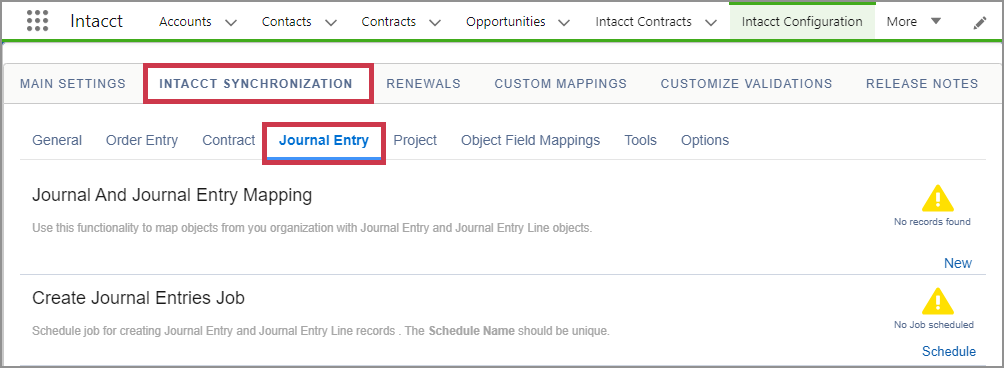
Zuordnung von Journal und Journaleintrag
Weitere Informationen finden Sie unter Zuordnung von Journal und Journaleintrag
Aufgabe für Journaleinträge erstellen
Mit diesem Tool können Sie Datensätze für Journaleinträge und Journaleinträge in Salesforce nach einer Terminierung erstellen. Der Name Ihrer Terminierung muss eindeutig sein.
Jobs für Journaleinträge synchronisieren
Verwenden Sie dieses Tool, um Journaleinträge mit Intacct zu synchronisieren. Der Name Ihrer Terminierung muss eindeutig sein.
Dimensionsvalidierungen für Journaleinträge
Mithilfe des Validierungsverwaltungstools können Sie Validierungen für Journaleintragsdimensionen auswählen, die Sie bei der Generierung von Journaleinträgen verwenden möchten.
Erforderliche Validierungen für Intacct-Dimensionen
Wenn diese Option aktiviert ist, sind Validierungen für Intacct-Dimensionsfelder basierend auf dem Intacct-Konto aktiviert.
Feld für UDDs erstellen
Prüft und erstellt die Benutzer-definierten Dimension-Felder (UDD) automatisch.
Projekt
Die Projekt Abschnitt des Intacct-Synchronisierung Der Tab steuert das Projektverhalten in Salesforce.
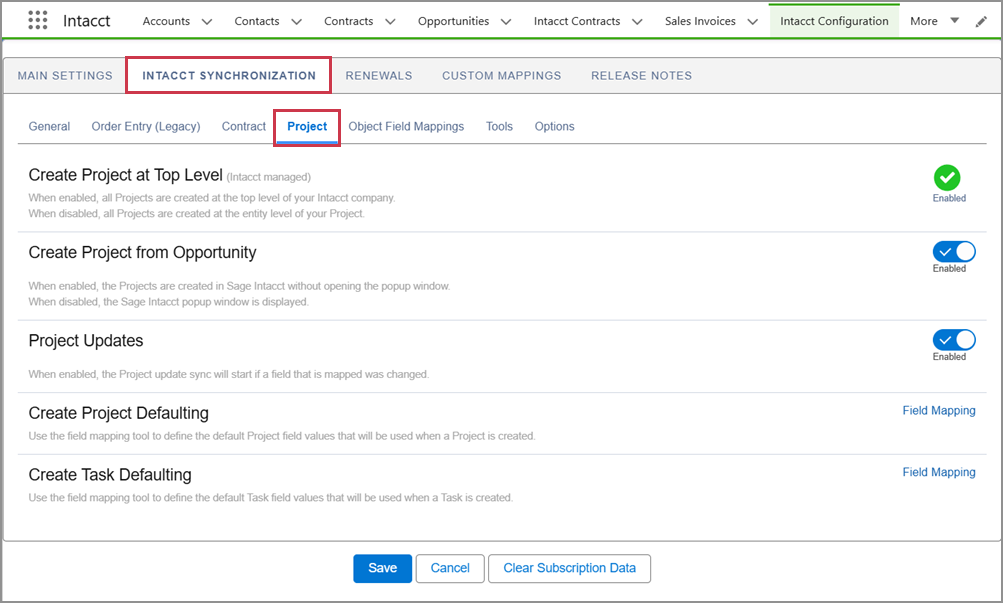
Projekt auf oberster Ebene erstellen
Wenn diese Option nicht ausgewählt ist, werden alle Projekte auf der obersten Ebene Ihres Intacct-Unternehmens erstellt.
Wenn diese Option deaktiviert ist, werden alle Projekte auf der Geschäftsbereichsebene Ihres Projekts erstellt.
Dies ist eine von Intacct verwaltete Einstellung.
Projekt aus Geschäftschance erstellen
Wenn diese Option aktiviert ist, werden Projekte in Intacct erstellt, ohne ein Popup-Fenster zu öffnen.
Wenn diese Option deaktiviert ist, wird das Intacct-Popup-Fenster angezeigt.
Projektaktualisierungen
Wenn diese Option aktiviert ist, wird die Synchronisierung der Projektaktualisierung gestartet, sobald ein zugeordnetes Feld geändert wird.
Projektstandardeinstellungen erstellen
Mithilfe des Feldzuordnungs-Tools können Sie die Standardwerte für das Feld "Projekt" definieren, die bei der Erstellung eines Projekts verwendet werden.
Aufgabenstandardeinstellungen erstellen
Mithilfe des Feldzuordnungs-Tools können Sie die Standardwerte für das Feld "Aufgabe" definieren, die bei der Erstellung einer Aufgabe verwendet werden.
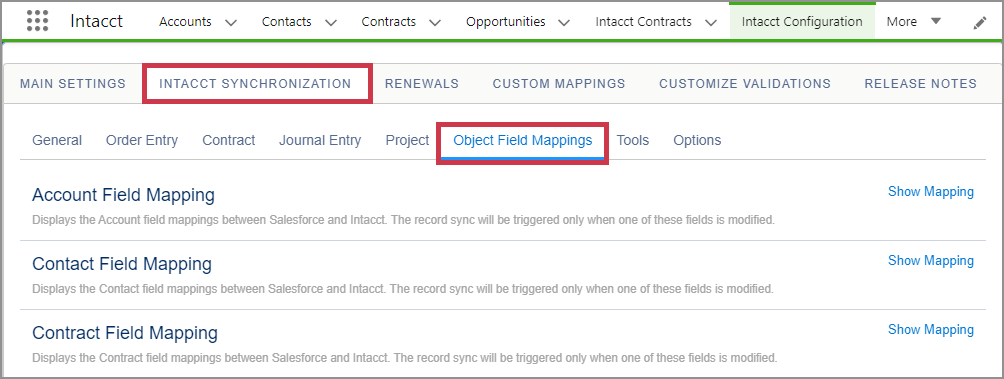
Objektfeldzuordnungen
Auf dem Tab "Objektfeldzuordnungen" können Sie die Feldzuordnungen zwischen Intacct und Salesforce überprüfen.
Sie können Feldzuordnungen ändern in Intacct verwenden. Der Tab in Salesforce zeigt nur bestehende Zuordnungen zwischen den Systemen an.
Werkzeuge
Die Tab "Tools" enthält das Werkzeug "Datensatzverknüpfungen unterbrechen" und das Tool "Intacct-Massensynchronisierung".
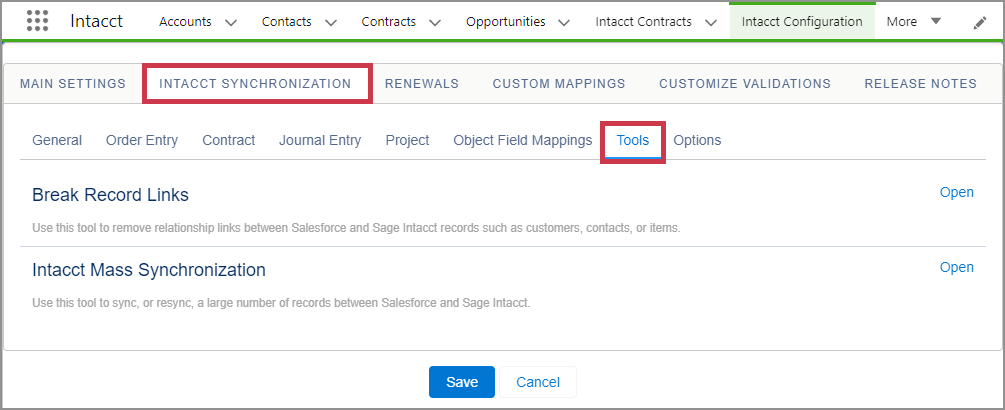
Datensatzverknüpfungen unterbrechen
Mit diesem Tool können Sie Beziehungsverknüpfungen zwischen Salesforce- und Sage Intacct-Datensätzen entfernen.
- Wählen Sie Öffnen aus.
- Wählen Sie im Pop-up-Fenster das Salesforce-Objekt mit einem Link aus, den Sie unterbrechen möchten. Sie wählen z. B. das Kontoobjekt aus.
- Suchen Sie das Konto mit dem Link, den Sie trennen möchten.
Die Kontoinformationen werden in einer Tabelle angezeigt. - Vergewissern Sie sich, dass das richtige Konto ausgewählt wurde, und wählen Sie Link unterbrechen.
- Wenn Sie weitere Links unterbrechen müssen, wiederholen Sie die obigen Schritte. Auswählen Schließen wenn fertig.
Die folgenden Links können derzeit defekt sein:
| Intacct | Salesforce |
|---|---|
| Kunde | Konto |
| Kontakt | Kontakt |
| Element | Produkte |
Intacct-Tool für die Massensynchronisierung
Einen Link zum Intacct-Tool für die Massensynchronisierung finden Sie hier auf der Tab Tools. Wenn Sie Öffnenverwenden, öffnet ein neuer Browser-Tab das Massensynchronisierungstool.
Weitere Informationen zur Verwendung des Tools finden Sie unter Intacct-Tool für die Massensynchronisierung.
Optionen
Intacct stellt benutzerdefinierte Seiten zum Hinzufügen von Geschäftschancenprodukten und Journaleinträgen bereit. Sie können zwischen Intacct-Seiten oder Salesforce-Standardseiten wählen.
Wenn Sie beispielsweise ein Geschäftschancenprodukt zu einer Geschäftschance für Verträge hinzufügen, verhält sich die Seite "Intacct" in Salesforce genauso wie das Popup-Fenster "Vertragsposition hinzufügen" in Intacct. Auf der Intacct-Seite in Salesforce werden Felder basierend auf der von Ihnen getroffenen Auswahl ebenfalls ein- und ausgeblendet. Diese Funktion ist nicht verfügbar, wenn Sie die Salesforce-Standardseite zum Hinzufügen von Geschäftschancenprodukten verwenden.
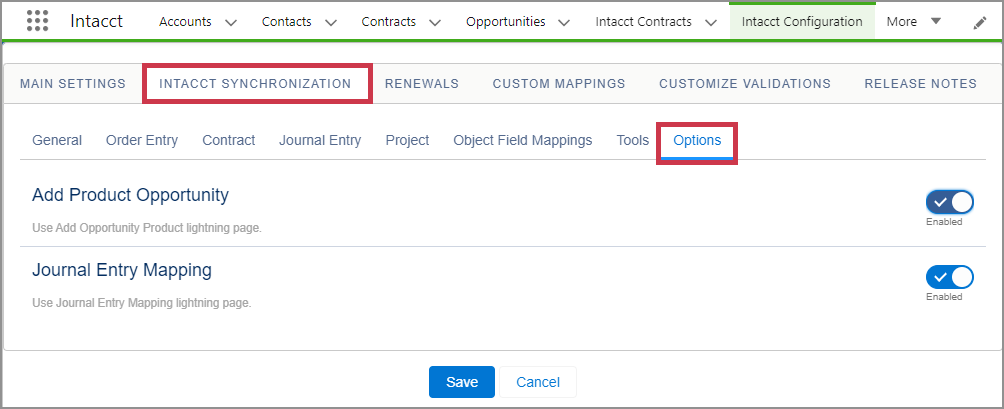
Produktchance hinzufügen
Verwenden Sie die Lightning-Seite "Intacct-Geschäftschancenprodukt hinzufügen".
Journaleintragszuordnung
Verwenden Sie die Lightning-Seite "Intacct-Journaleintragszuordnung".
Themeninhalte